13 Templates That Turn Rambling Into Results
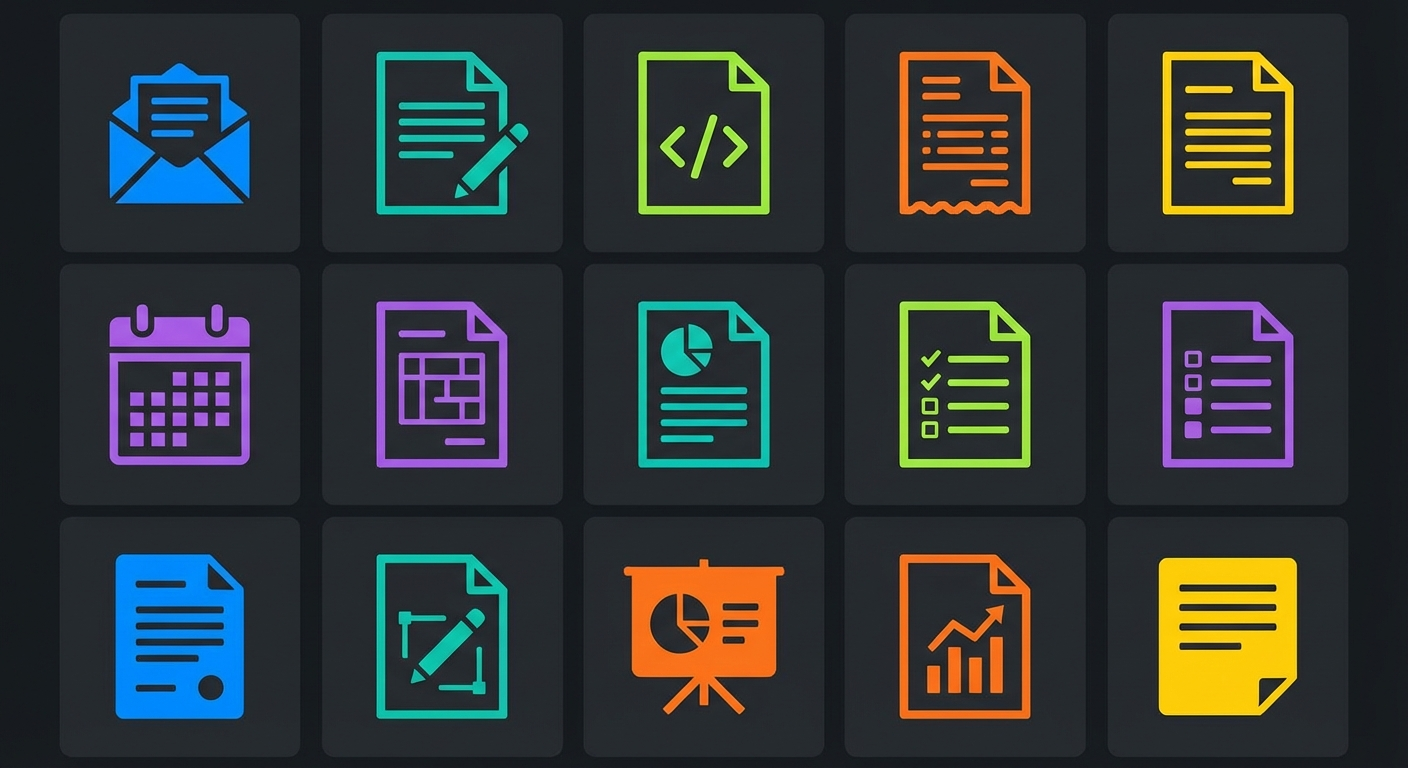
You just dictated for two minutes straight. The transcription is clean. The filler words are gone. But what you are looking at is still a wall of text that needs reshaping before you can actually use it.
That is what templates solve. Superscribe ships with 13 output templates that take raw dictation and restructure it into specific document formats. Pick a template, and the AI reformats your words while preserving your tone and intent.
Here is every template, what it does, and when to use it.
Core Templates
These three handle the most common use cases. If you only ever use three templates, make it these.
1. Super
What it does: Fixes grammar, punctuation, and sentence structure. Keeps everything else intact.
Example use case: You dictated a long Slack message and want it cleaned up without changing the tone or content. Super smooths the rough edges while leaving your voice alone.
Who it is for: Anyone who wants polished text without any structural changes. The lightest touch of all the templates.
2. Message
What it does: Formats your dictation as a casual, conversational message. Tightens sentences, keeps the tone informal.
Example use case: You need to reply to a friend, a teammate, or a group chat. You rambled for 30 seconds. The Message template turns it into something that reads like you typed it quickly and naturally.
Who it is for: People who dictate messages but do not want them to sound dictated.
3. Summary
What it does: Condenses your dictation into a concise summary. Strips out tangents, repetition, and unnecessary detail. Keeps the key points.
Example use case: You just spent five minutes talking through a project update. The Summary template pulls out the three things that actually matter and gives you a paragraph you can paste into a status update or project tracker.
Who it is for: Managers, team leads, anyone who needs to distill long thoughts into short updates.
Email Templates
Two templates for the two kinds of emails everyone writes.
4. Professional Email
What it does: Restructures your dictation into a formal email with a subject line, greeting, body, and sign-off. The AI infers the appropriate level of formality from your words.
Example use case: You need to send a client update about a delayed deliverable. You dictate the key points in plain language. The template turns it into a polished email with proper structure and professional tone.
Who it is for: Freelancers emailing clients, professionals writing to stakeholders, anyone who hates drafting formal emails from scratch.
5. Casual Email
What it does: Same structural formatting as the professional version, but with a warmer, more conversational tone. Less stiff, more human.
Example use case: You are following up with a colleague about a project. Formal enough to be an email, casual enough that it does not feel like a legal document.
Who it is for: Internal communication, friendly professional relationships, emails to people you have already met.
Organization Templates
These three are for capturing and structuring information. Dictate a mess, get something organized.
6. Note
What it does: Formats your dictation as a structured note with key points highlighted. Adds logical grouping and light formatting without over-processing.
Example use case: You are walking to lunch and want to capture thoughts about a feature you are designing. You talk for 90 seconds. The Note template gives you a clean, scannable reference you can revisit later.
Who it is for: Anyone who captures ideas, research notes, or observations on the fly.
7. Meeting Notes
What it does: Extracts attendees, discussion points, decisions, and action items from your dictation. Structures them into a standard meeting notes format.
Example use case: You just walked out of a standup. Instead of typing up notes, you dictate a recap in 30 seconds. The template separates what was discussed from what was decided and who needs to do what.
Who it is for: Anyone who attends meetings and is responsible for sharing notes afterward. Which is basically everyone.
8. To-Do List
What it does: Pulls actionable items from your dictation and formats them as a checklist. Identifies deadlines when mentioned.
Example use case: You are ending your workday and brain-dumping everything you need to handle tomorrow. The template turns your stream of consciousness into a prioritized checklist with deadlines attached.
Who it is for: People who think out loud and need that thinking converted into tasks they can actually track.
Content Templates
Two templates for creating public-facing content from your voice.
9. Tweet / Social Post
What it does: Transforms your dictation into a social media post using a Hook-Retain-Reward framework. Opens with something attention-grabbing, keeps the reader engaged, and ends with a payoff.
Example use case: You have a thought about a trend in your industry. You talk about it for 45 seconds. The template distills it into a punchy post that fits the rhythm of X/Twitter, LinkedIn, or similar platforms.
Who it is for: Creators, founders, marketers, and anyone who shares ideas on social media but struggles with the blank text box.
10. Blog Post
What it does: Takes your dictation and structures it as a blog post with a headline, introduction, subheadings, body sections, and conclusion.
Example use case: You have expertise on a topic and want to write about it, but sitting down to write feels like pulling teeth. You talk for five minutes instead. The template gives you a draft with real structure that you can refine and publish.
Who it is for: Content creators, thought leaders, anyone who writes better when they talk first.
Coding Templates
Three templates built specifically for developers. These are the ones that tend to surprise people.
11. AI Coding Prompt
What it does: Takes a verbal description of what you want to build and structures it into a clear, organized prompt for AI coding assistants like Copilot, Cursor, or Claude.
Example use case: You need a function that validates email addresses, checks them against a blocklist, and returns a specific error format. Instead of typing out the prompt, you describe it out loud. The template structures it with labeled sections for requirements, inputs, outputs, and constraints.
Who it is for: Developers who use AI coding tools and want better prompts without the overhead of writing them out manually.
12. Elite Coding Prompt (JSON Structured)
What it does: The more rigorous version. Outputs a JSON-structured specification with fields for context, requirements, constraints, expected behavior, and edge cases. Designed for AI agents and automated pipelines that work better with structured input.
Example use case: You are feeding instructions into an AI agent that builds features from specs. You describe what you need verbally. The template outputs a machine-readable JSON document that the agent can parse directly.
Who it is for: Power users of AI coding tools. Developers working with autonomous coding agents. Anyone who wants maximum precision from their AI-generated code.
13. Bug Report
What it does: Structures your dictation into a standard bug report format with sections for description, steps to reproduce, expected behavior, actual behavior, and environment details.
Example use case: You just found a bug. Instead of switching context to your issue tracker and filling out a form, you describe the problem out loud. The template formats it into a report you can paste directly into GitHub, Jira, Linear, or wherever your team tracks issues.
Who it is for: Developers, QA testers, anyone who reports bugs and wants to do it faster without losing detail.
How to Use Templates
Templates are accessible from the Superscribe settings panel. Click the gear icon, expand the template section, and pick the one you need before or after dictating.
The workflow looks like this:
- Dictate normally (filler words get stripped automatically)
- Pick a template
- Wait a few seconds for AI processing (a spinner shows progress)
- Get formatted output
You can also skip templates entirely. The default experience gives you clean, filler-free text with no extra processing. Templates are there when you need structured output, not forced on every dictation.
The Pattern
All 13 templates share the same principle: they take unstructured voice and give it structure.
The input is always the same. You talk. You say whatever comes to mind, however it comes to mind. Tangents, half-sentences, course corrections, all of it.
The output depends on what you need. An email. A task list. A coding spec. A social post. The template handles the translation from how you think to how the document needs to look.
That is the real unlock. You stop worrying about format while you are talking and let the template worry about it after.
Try all 13 templates at superscribe.io
Speak. Track. Bill.
Related reading
Try Superscribe free
Dictate into any app. Track your time automatically. No credit card required.
Get Started