Voice to Text for Customer Support Teams
If you answer support tickets all day, you already know the problem.
You are typing the same kinds of sentences over and over. Variations of the same explanation, different customer names, slightly different context. Your fingers are doing a lot of work your brain solved hours ago.
And the irony is that you could just say it out loud in half the time.
Most support agents type around 60 to 80 words per minute when focused. Most people speak at 130 to 150 words per minute in natural conversation. That gap is sitting on the table every single day.
Voice to text for customer support is not a futuristic concept. It is a practical time trade that most support workers have never seriously tried.
Why support teams are a natural fit for dictation
The support inbox has a specific shape.
You are not writing creative prose. You are not crafting a long argument. You are explaining a thing, answering a question, acknowledging a problem, and pointing toward a solution. That is the structure of most tickets.
That structure translates well to spoken output.
When you speak a support reply, you already know what you want to say. The hard part is typed throughput. Dictation removes the bottleneck between knowing the answer and getting it into the tool.
This is not just about speed. It is about attention and fatigue.
Typing is a motor task that sits on top of the cognitive task of understanding the customer and knowing the right answer. When the motor task becomes lighter, the cognitive task gets more room. Replies tend to be clearer and better thought through when you are not simultaneously trying to type them fast.
A few places where this shows up clearly:
- Long explanation tickets that need three or four paragraphs
- Customer calls where you need to write follow-up notes immediately after
- CRM entries that most agents skip because typing them feels like bonus admin
- Internal handoff notes where the context always gets abbreviated because no one wants to type it all out
The tooling gap most support workers run into
If you have tried dictation before, you have probably hit one of two problems.
The first is that the tool captures audio in a separate window, gives you a transcript, and asks you to paste it somewhere. That is an extra step that adds friction instead of removing it. You are now maintaining two contexts: the tool and the support window.
The second is that the tool is slow. There is a recording delay, a processing pause, and then an insert. By the time the text lands, you have already started typing because the wait felt longer than just writing it yourself.
Both of these kill the habit before it starts.
The version that actually works is live dictation that streams directly into the field you already have focused. You open the support ticket reply field, hold a shortcut, speak, and watch the words appear there as you talk. No transcript step. No paste. No separate window to manage.
That is the version that sticks.
If you want to understand how live streaming into an active field is different from record-then-transcribe, Live Dictation Into Any Input Field explains the distinction clearly.
What to look for in a dictation app for support work
Not all dictation apps work the same way in support tools.
Some only work inside specific apps or desktop software. Some require you to dictate into their own interface and then move the text. Some are built for document creation rather than rapid field-level input.
For support work specifically, a few things matter more than others:
Universal field input. Your helpdesk runs in a browser. Intercom, Zendesk, Freshdesk, Linear, Notion, Slack, Gmail, HubSpot – most of these are browser-based tools. A dictation app that only works inside a dedicated document editor is not going to cut it. You need something that types into whatever field is active in any app or browser tab.
Low activation friction. If the shortcut to start dictating is awkward, or if the app needs to fully load each time, you will stop using it within a week. One keyboard shortcut to start, one to stop. That is the right interaction model.
Real-time output. The transcript should appear as you speak, not after you stop. Streaming output lets you course-correct mid-sentence and feels far more natural than hearing yourself talk into a void and waiting.
Accuracy on mixed vocabulary. Support work often involves product names, technical terms, and customer-specific language. The transcription model should handle that without needing heavy custom training.
Superscribe is built around exactly this workflow. You hold Option+Space, speak into whatever field is focused, and the words stream in live. It works across Mac and Windows, inside any app or browser, with no separate interface to manage.
You can try it at superscribe.io.
Where this is heading: inbound calls that handle themselves
Dictation into reply fields is the workflow that exists today. But the bigger shift coming to support teams is at the phone level.
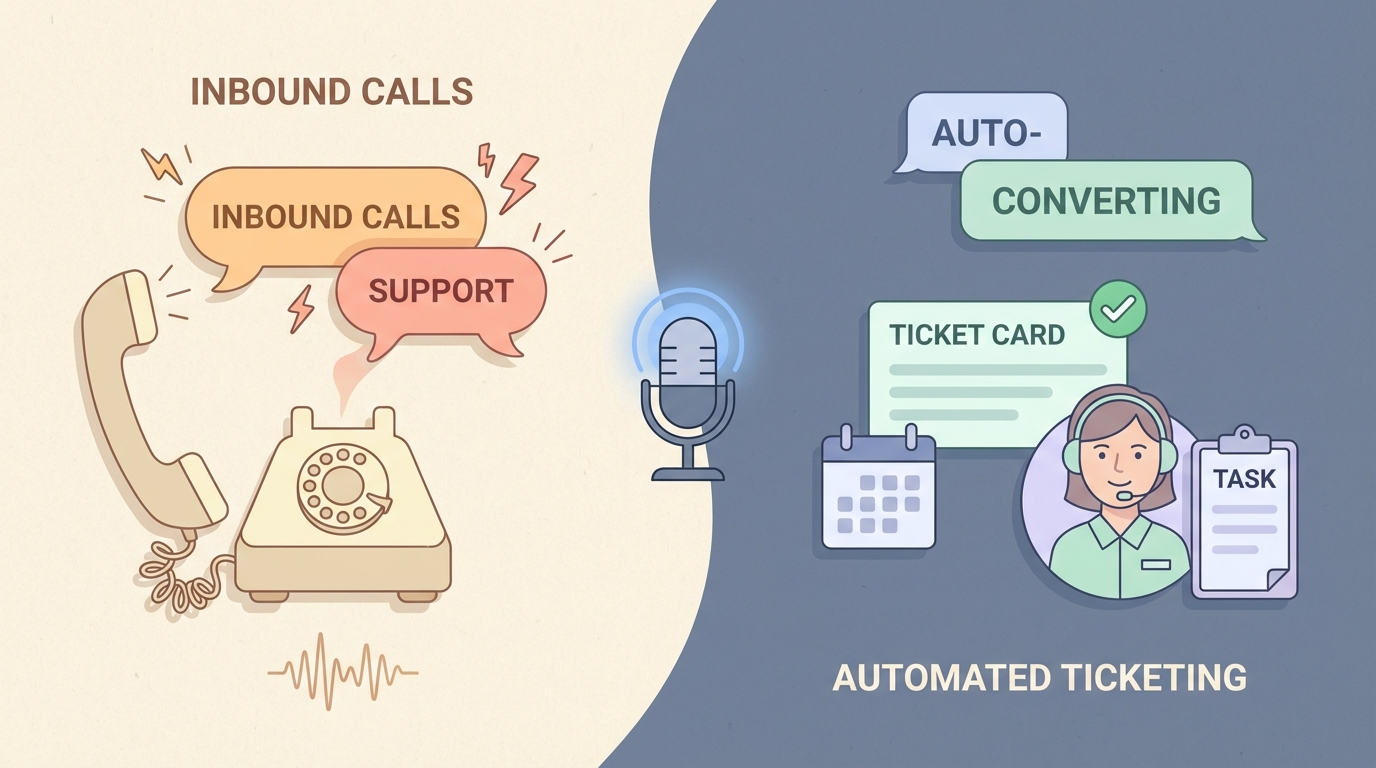
Superscribe is building a phone app where support calls get forwarded directly to the app and handled like a regular inbound call. Every call is auto-transcribed as it happens. From that transcript, a support ticket is created automatically via the recording API and MCP — no manual logging, no post-call data entry, no summary written from memory.
From there, tickets get routed to agents with full context already attached. The simplest cases get resolved automatically. The complex ones land with agents who already know what the call was about, without anyone having to type it up.
For businesses running support at any meaningful volume, this changes the math significantly. Right now, the gap between a call ending and a ticket existing is filled with human effort that adds up across hundreds of interactions. When that step becomes automatic, agents spend time resolving issues rather than transcribing them.
This is coming to businesses. If you run a support team and want to know more, superscribe.io is the place to follow the build.
The billing angle most support workers miss
If you are a solo operator or freelancer running your own support, there is a second benefit that rarely shows up in dictation app marketing.
Every support interaction takes time. If you are billing by the project, that time is invisible unless you track it manually. Most people do not.
The practical reality is that client support adds up. Email clarifications, quick Slack questions, follow-up threads, ticket resolution across clients. When you are dictating replies, each session can be tied to a project automatically.
That is what Superscribe does differently from a standard dictation app. The time tracking is built into the dictation workflow rather than sitting in a separate tool you have to remember to start and stop.
For freelancers and consultants who handle their own support, that is a meaningful change.
How to Track Billable Hours Automatically Without Timers goes deeper on how that works if you want the full picture.
What it looks like in practice
The workflow for a support agent using live dictation is not complicated.
You open the ticket. You read it. You know the answer. You press the shortcut, speak the reply, release the shortcut. The text is already in the field. You review it quickly and send.
For a longer ticket with multiple points, you speak in natural segments. Hold the shortcut, say the first paragraph, release. Glance at the output. Hold again, say the next section, release.
The habit builds fast because the reward is immediate. The reply takes 20 seconds instead of a minute and a half. Your hands got to stay still.
For most support workers, the first week feels like a productivity trick. The second week it just feels normal.
A few practical notes before you start
If you have not used voice dictation in a work context before, a few things are worth knowing.
You will feel slightly self-conscious for the first day. That goes away fast. Speaking a reply out loud in your own space starts feeling natural within a week.
Punctuation takes practice. Most dictation apps accept voice commands for punctuation (“comma”, “period”, “new paragraph”). Some insert it automatically based on natural pauses. Either way, this is something you learn once and then stop thinking about.
The environment matters. Dictation works fine in a quiet office or home setup. In a loud open-plan space, you may want a close-mic headset rather than a built-in microphone. That is a cheap one-time fix.
You do not need to dictate everything. Some replies are one sentence. Just type those. Dictation earns its keep on medium and long replies, notes, internal summaries, and anything that already costs you two or three minutes of typing.
The honest case
Voice to text for customer support is not a hack or a workaround.
It is a straightforward productivity trade. Speaking is faster than typing. The gap is real and measurable. For anyone who handles moderate to heavy support volume, the daily time recovered is not trivial.
The barrier is usually just inertia and the assumption that the tools are clunkier than they actually are now.
If you spend a meaningful portion of your work day writing support replies, the experiment is worth running. The minimum viable version is one week, three to four hours of daily support work, with a dictation app that streams into the active field.
The result will tell you whether this belongs in your workflow permanently.
Most people who try it do not go back.
Try Superscribe at superscribe.io
Speak where you already work. Let the text land there. Keep the time.
Related reading
- Live Dictation Into Any Input Field
- Dictation App for Mac That Types Where You Work
- How to Track Billable Hours Automatically Without Timers
- Time Tracking for Consultants Who Hate Timers
Frequently asked questions
Can you use voice to text in Zendesk, Intercom, or Freshdesk?
Yes, if the dictation app supports universal input into any browser field. Tools like Superscribe stream text directly into whatever field is active, including all browser-based helpdesk tools.
Does voice to text actually save time for support work?
It depends on the type of reply. For medium and long replies, speaking is reliably faster than typing. For one-line acknowledgments, typing is fine. The biggest gains come from reducing the time spent on detailed explanations and internal notes.
What dictation app works best for customer support?
The best fit is a tool that streams live into any browser input field without a separate transcript step. Superscribe is built specifically for that workflow on Mac and Windows.
Do I need special hardware to use voice dictation for support?
Not usually. A built-in laptop microphone works fine in quiet environments. If you work in a noisy space, a USB headset with a close-capture mic improves accuracy significantly.
Try Superscribe free
Dictate into any app. Track your time automatically. No credit card required.
Get Started