The fastest voice to text app for Mac is not just the one with the best benchmark.
It is the one that gets words into the field you are already using before your thought falls apart.
That distinction matters.
Plenty of transcription tools can turn audio into text after the fact. Some do it well. Some do it locally. Some give you a polished transcript, a summary, and a searchable file.
But if you are writing an email, updating a ticket, prompting an AI coding tool, filling a CRM note, or drafting a client update, the speed you feel is simpler:
Can you speak now and see usable words land now?
When dictation needs to keep up
Speak into the field where the work is happening
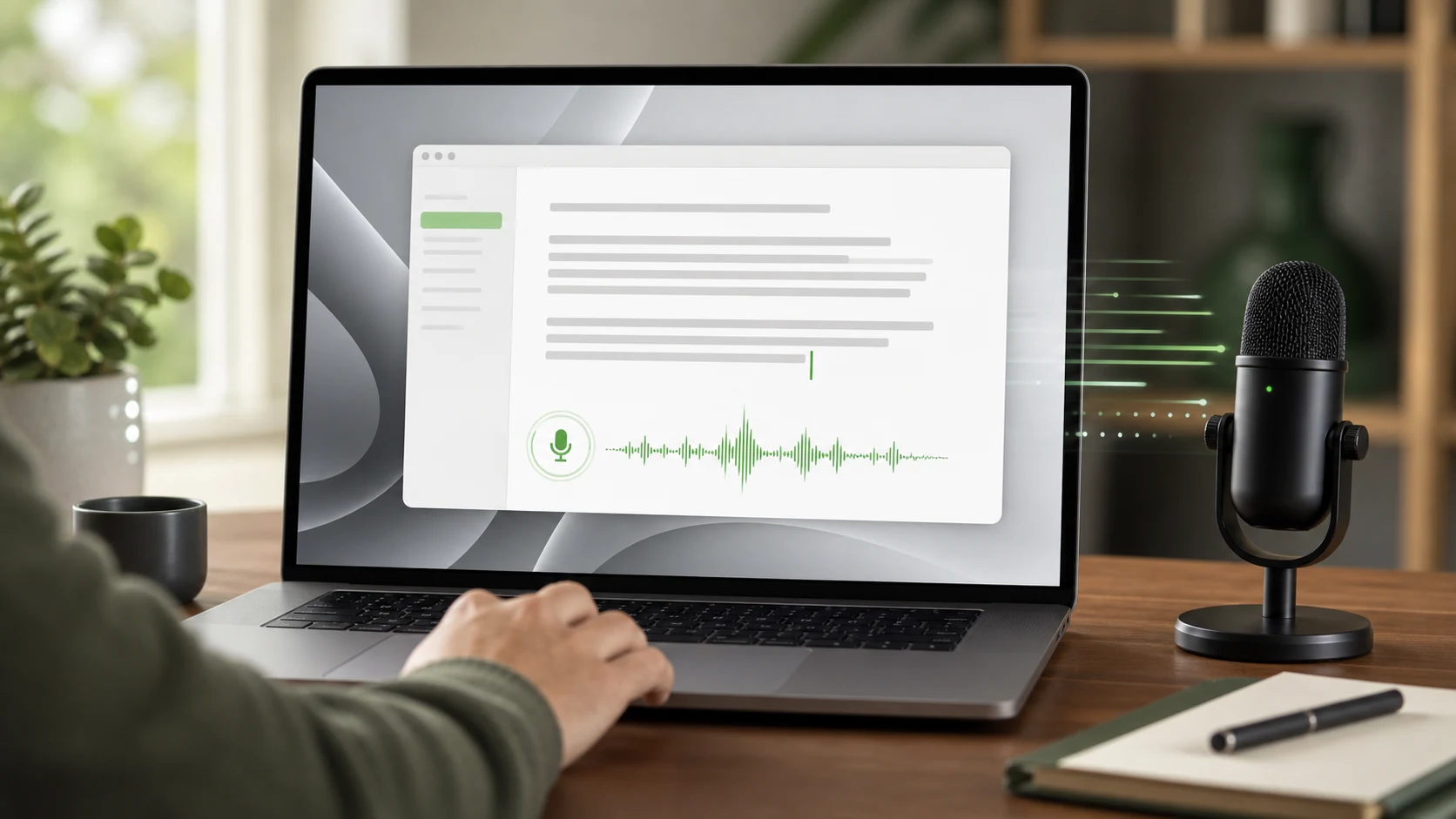
Superscribe streams dictation into active text fields so you can write prompts, notes, updates, and client context without recording first and cleaning up later.
The short version
Fast voice to text on Mac depends on four things:
- low delay between speech and text
- text appearing in the app where you are working
- few correction steps after the words appear
- no record, export, copy, paste, or cleanup loop
If a tool is technically accurate but makes you wait until the end of a recording, it may still feel slow.
If a tool streams live but drops text into the wrong place, it also feels slow.
The best workflow is real-time dictation that types where your cursor already is.
That is the job Superscribe is built around.
Why speed is more than transcription latency
Latency matters. Nobody wants to dictate a sentence and wait around wondering whether the app heard it.
But there are two kinds of delay.
The first is technical delay: how quickly the system turns speech into text.
The second is workflow delay: how much admin sits between saying the thing and using the thing.
Workflow delay is often the bigger problem.
You can have a fast transcription engine and still lose time if the process looks like this:
- open a recorder
- speak the note
- stop recording
- wait for transcription
- copy the text
- paste it into the real app
- fix formatting
- remember what you were doing
That is not fast in practice.
It is just a faster version of a slow workflow.
For more on this distinction, read why real-time dictation feels more reliable than record-then-transcribe.
The Mac dictation problem
Mac users already have dictation options.
Apple Dictation is built in. It is useful for basic text entry, especially if you need something quick and do not want another app.
File-based transcription tools are also useful. They are a good fit when you have an audio file, a voice memo, an interview, or a long recording that needs to become text later.
The gap appears when dictation is part of live work.
You are not trying to transcribe an artifact. You are trying to write while thinking.
That might mean:
- talking through a client email
- dictating a support reply
- prompting Cursor, Claude Code, or another coding tool
- updating a Linear issue
- writing meeting follow-up notes
- capturing project context before you forget it
- turning a rough thought into a clean first draft
In that moment, the best dictation app is not the one with the fanciest transcript library.
It is the one that behaves like faster typing.
What makes Superscribe feel fast on Mac
Superscribe is built for live dictation into active text fields.
That means the words go where your cursor is, instead of landing in a separate transcript box that you need to move later.
This is the practical difference:
Record-then-transcribe tools help after you are done talking.
Superscribe helps while you are doing the work.
That matters for Mac users who live across browser tabs, docs, terminals, task tools, code editors, inboxes, CRMs, and AI tools. The point is not to create another place for text. The point is to get text into the place you already chose.
For freelancers and consultants, Superscribe also connects dictation with work context. Speaking through a client update, a bug note, or a project decision can become part of the trail you use to remember and bill the work later.
That is why live dictation into any input field is a different workflow from normal transcription.
When a slower-feeling tool may still be the right tool
The fastest live dictation workflow is not always the right answer.
If you have a long recorded interview, a podcast, a legal recording, or a voice memo from yesterday, a file transcription tool may be better.
If you need offline-only transcription, a local Whisper-based app may be the better fit.
If you need a meeting assistant that joins calls, summarizes agendas, and shares notes with a team, meeting-note software may be the better category.
But if the job is writing into a field on your Mac, the category changes.
You want live voice input, not a transcript archive.
That is the difference between “I captured the audio” and “I got the work written.”
A quick checklist for choosing a fast Mac voice to text app
Use this checklist before picking a tool:
- Does the text appear while you speak?
- Does it type into the active field?
- Can you use it across apps, not just inside one editor?
- Does the output need less cleanup than typing would?
- Does it avoid the record, transcribe, copy, paste loop?
- Does it fit the work you actually do on your Mac?
If most answers are no, the app may still be a good transcription tool.
It is probably not the fastest dictation workflow.
The bottom line
Fast voice to text is not only about milliseconds.
It is about keeping the thought, the cursor, and the output in the same place.
For Mac users who want to write faster while working, Superscribe is built around that simple idea: speak where you already work, see the words land there, and keep moving.
Try live Mac dictation without the cleanup loop
Use voice to write where your cursor already is
Superscribe helps you dictate prompts, emails, tickets, notes, and client updates directly into the tools you already use.