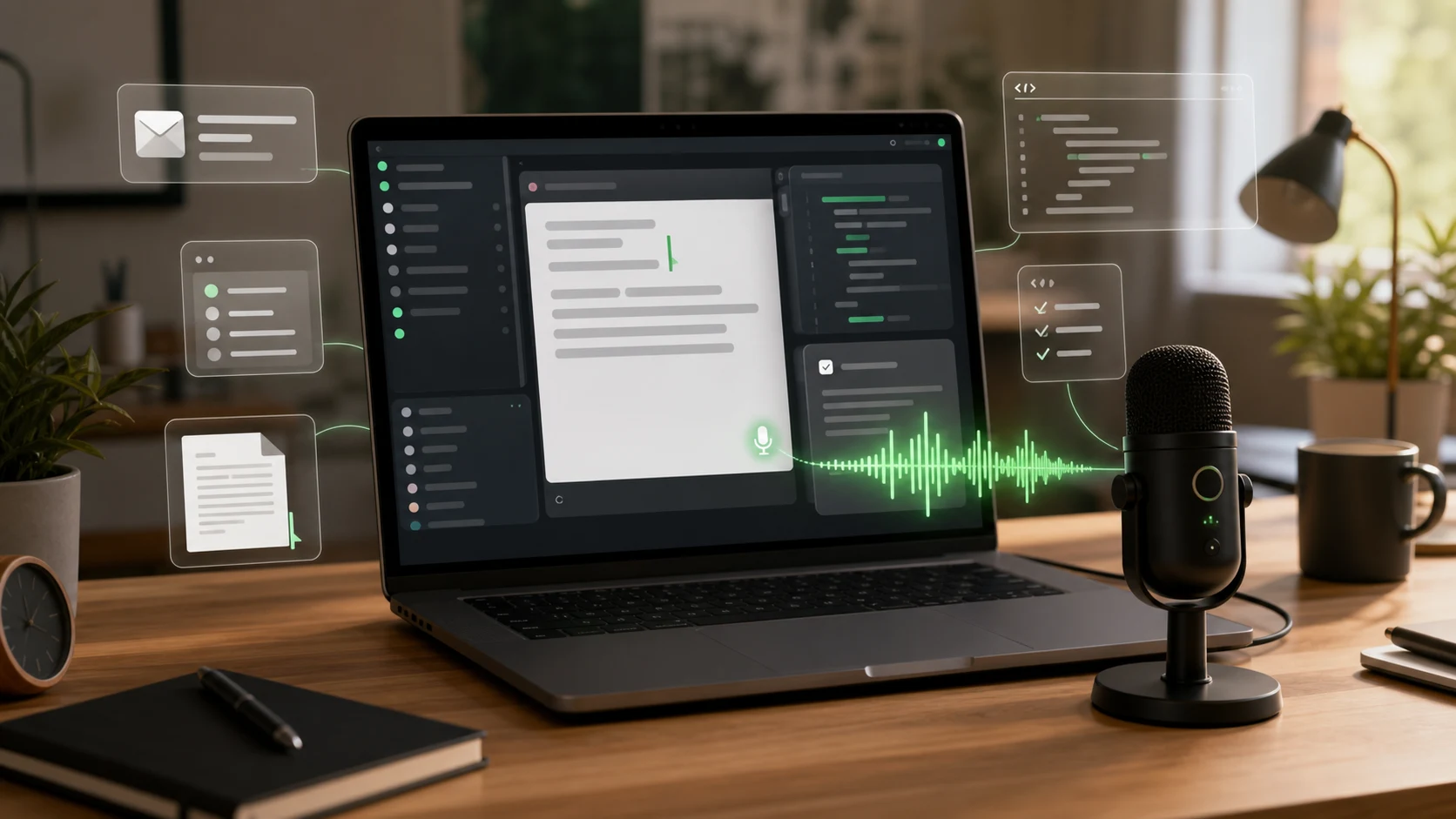
A real-time voice to text desktop app should feel less like transcription and more like typing with your voice.
That sounds small until you look at how most voice tools actually fit into a workday.
You open a recorder. You talk. You wait. You copy the transcript. You paste it into the app where the work was supposed to happen. Then you clean up the formatting and try to recover the thought you had five minutes ago.
That workflow technically creates text.
It does not feel real-time.
Real-time voice to text should remove that gap. If you are writing a client update, prompting an AI coding tool, filling out a ticket, replying to an email, or documenting a bug, the words should land in the active field while you are still thinking.
When voice should behave like typing
Dictate into the field where the work is already happening
Superscribe streams speech into active desktop fields so prompts, notes, tickets, emails, and client updates do not get trapped in a separate transcript workflow.
The short version
A good real-time voice to text desktop app should do four things:
- listen while you work
- type into the active field
- keep delay low enough that you do not lose your thought
- avoid the record, transcribe, copy, paste loop
That is the difference between desktop dictation and file transcription.
File transcription is useful when you already have audio.
Desktop dictation is useful when you are creating work right now.
Why desktop matters
Browser transcription tools can be helpful, but many workdays do not happen inside one browser tab.
You may be moving between:
- docs
- Slack
- Linear
- GitHub issues
- a CRM
- a terminal
- Cursor or another code editor
- Claude Code, Codex, or other AI tools
- an invoice note or project tracker
If your voice tool only works well inside its own editor, it creates another inbox.
You still have to move the text.
That is where time disappears.
A desktop voice to text app should follow the cursor. The useful question is not “where does the transcript live?” The useful question is “where do the words need to go?”
For many people, the answer is the field already open on screen.
Real-time is a workflow claim, not only a speed claim
Speed matters, but real-time is not just a number.
If a tool has low transcription delay but makes you move the result manually, the workflow is still slow.
If a tool gives you a clean transcript after the recording, it may be accurate and useful, but it is not the same job as live dictation.
Live desktop dictation should support the moment when the work is being formed.
Examples:
- You are explaining a bug reproduction into a GitHub issue.
- You are talking through a client email before sending it.
- You are dictating a prompt into an AI coding assistant.
- You are adding CRM context after a call.
- You are updating a project note before the detail fades.
- You are turning a rough thought into a first draft without opening another app.
In those moments, the value is not “I have a transcript somewhere.”
The value is “the work is written where I need it.”
That is why live dictation into any input field is a stronger workflow than a transcript box for active work.
What to look for in a real-time desktop app
Use this checklist when comparing tools.
It types where your cursor is
This is the core requirement.
If the app forces everything into a separate note, transcript, or web editor, you are still doing routing work.
For real-time desktop dictation, the active field matters. The tool should help you write in the place you already chose.
It works across the apps you use
Your work probably does not stay in one app.
A freelancer might dictate an issue summary in Linear, a short note in Slack, a prompt in Cursor, and a billing note in a project tracker.
A consultant might move between email, docs, CRM, and a proposal.
A real-time desktop app should be useful across that spread.
It avoids cleanup debt
Bad dictation can save typing time and then spend it all on cleanup.
The output does not need to be perfect, but it should be usable enough that you keep moving.
If you constantly rewrite every sentence, fix formatting, or remove transcript artifacts, the app is not really accelerating the work.
It fits professional work
Voice to text for work is different from voice notes for memory.
Work output often needs to be clear, structured, and placed in the right destination.
That might mean a prompt, a client update, a support note, a task description, a meeting follow-up, or a tiny project decision that should not disappear.
The app should support that kind of practical writing.
Where Superscribe fits
Superscribe is built around live desktop dictation.
The wedge is simple: speak where you already work.
Instead of recording a note and moving it later, you dictate into the active field. That makes it useful for the kinds of writing that happen across a desktop workday:
- AI prompts
- bug notes
- client emails
- tickets
- docs
- project updates
- CRM notes
- dictated follow-up emails
For freelancers, consultants, and builders, Superscribe also connects voice capture with work context. Spoken work can become part of the trail that helps you remember what happened, which project it belonged to, and what should be billed or followed up later.
That is especially useful when the day is split across calls, prompts, commits, messages, and memory.
For a Mac-specific version of this argument, read fastest voice to text app for Mac. For the broader reliability angle, read why real-time dictation feels more reliable than record-then-transcribe.
When record-then-transcribe is still better
Real-time desktop dictation is not the right tool for every audio job.
If you already have a long interview recording, a podcast, a lecture, or a voice memo from yesterday, file transcription may be the better category.
If you need a meeting assistant that joins calls and shares summaries with a team, meeting-note software may be a better fit.
If you need offline-only transcription for sensitive recordings, a local transcription app may be the right choice.
The important thing is to choose the category based on the job.
If the job is “turn this audio file into text,” transcription is fine.
If the job is “write this thing into the app I am using,” real-time desktop dictation is the better fit.
A simple buying test
Before choosing a real-time voice to text desktop app, ask:
- Does it help me write now, or does it create a transcript to process later?
- Does it work in the tools where my day actually happens?
- Does it reduce cleanup, or just move typing into editing?
- Does it help with work output, not just captured audio?
- Does it fit both short bursts and longer dictated thoughts?
The best answer is usually the tool that disappears into the work.
You speak. The words land. You keep going.
Use voice without opening another transcript inbox
Turn speech into work output on your desktop
Superscribe helps you dictate directly into the apps where prompts, notes, tickets, emails, and client updates already belong.