Record the Meeting You Are Already In, on Your Mac
Every meeting notetaker I tried wanted to join the meeting. A bot shows up in the participant list, the client asks what it is, and you explain that it is fine, it only takes notes.
The Superscribe desktop app now does the opposite. It records the meeting you are already in, from your own computer, and nothing joins anything.
How it works
Open the menu, press Meeting, press Start. That is it.
The app records what your computer is playing, which is the other people, and your microphone, which is you. When you press End, the recording goes to your account and comes back as a transcript with each speaker named, a summary, and the follow-ups.
It works with any meeting app: Zoom, Teams, Google Meet, a Slack huddle, a call in a browser tab. There is no link to paste and no extra participant for anyone to approve. Your computer asks once for permission to record its own audio, and that is the whole setup.

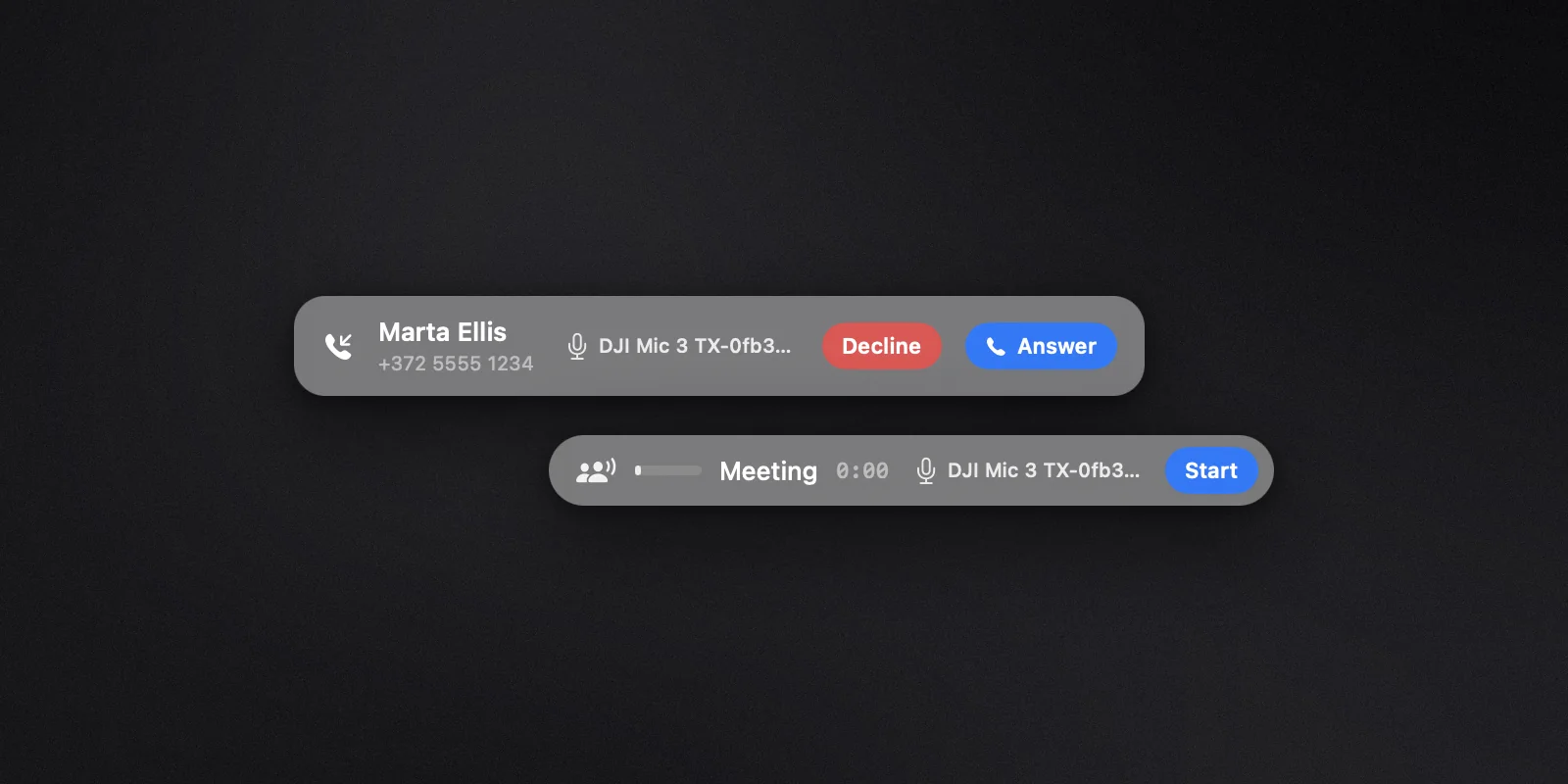
The little pill is the whole interface. It shows which microphone is recording, and you can switch microphones in the middle of a meeting if you started on the wrong one. I did that more often than I would like to admit.
Calls, too
If you have a Superscribe business number and a verified caller ID set up in the phone app, the same menu gains Call.
Pick a person, and the call goes out from your business number. The list starts with the people you actually call most, and searches your Superscribe contacts as you type. The call is recorded and written up like the ones from your phone: a summary, the follow-ups as one-tap actions, filed to the right project. If you have Pipedrive connected, it lands there as an activity.
Incoming calls ring on the computer as well as the phone. Whichever one you answer takes the call. There is a switch to stop the computer ringing, for anyone who shares an office.

The card shows the caller by name when they are in your contacts. This one is from a demo account, so the name and number are made up.
Someone is missing from the meeting
Press the people button on the pill and dial them by phone. Your computer joins the same call, so they hear the room and the room hears them, and they end up in the same transcript as everyone else. This needs the business number, same as Call.
What it does not do
- It records what your computer can hear. If half the room is around a table, the phone app on the table is the better recorder.
- It does not join the video call, so it cannot see slides, chat or who is on.
- It does not write your emails. You get the summary and the follow-ups; the email is yours to send.
- Meetings need a plan that includes the phone features, and they are not in Superscribe Lite. Calls need the business number and a verified caller ID from the phone app.
Get it
Version 0.4.0 is out for macOS and Windows. If you already have the app, it will tell you there is an update and hand you the download.
Meeting recording actually landed the evening before, in 0.3.3, and 0.4.0 added the calls, so one update gets you both. Dictation itself has not changed: the shortcut still types where your cursor is, in any app, in 99+ languages. This release adds the part of the day that happens on a call.