Connect Your SkyTel Number to Superscribe
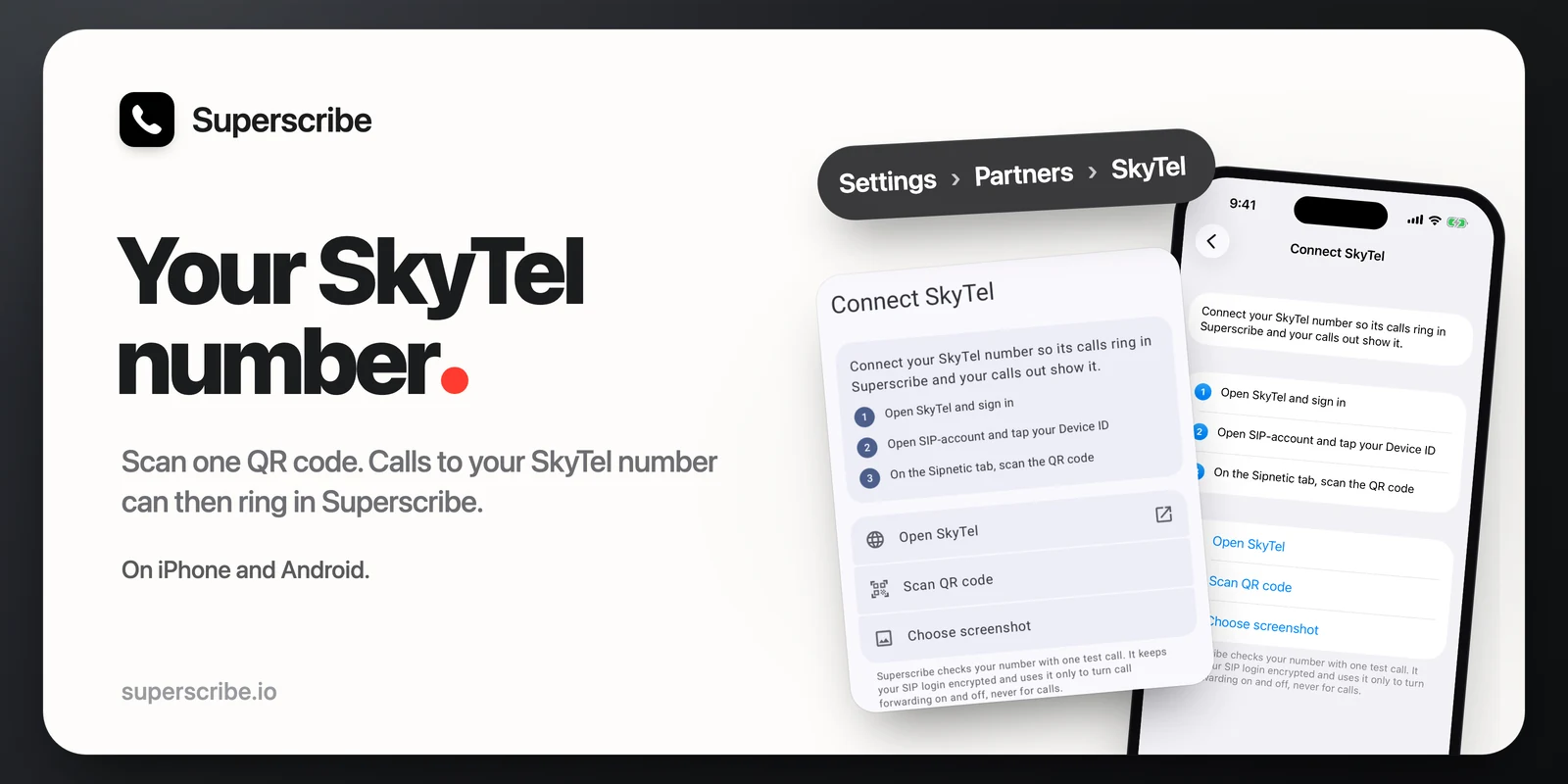
If your business number is with SkyTel, the Estonian phone operator, you can now connect it to Superscribe on iPhone and Android. It takes one QR code. After that, calls to your SkyTel number can ring in Superscribe, and the calls you make from Superscribe show your SkyTel number. You get notes for these calls like for any other Superscribe call.
How to connect it
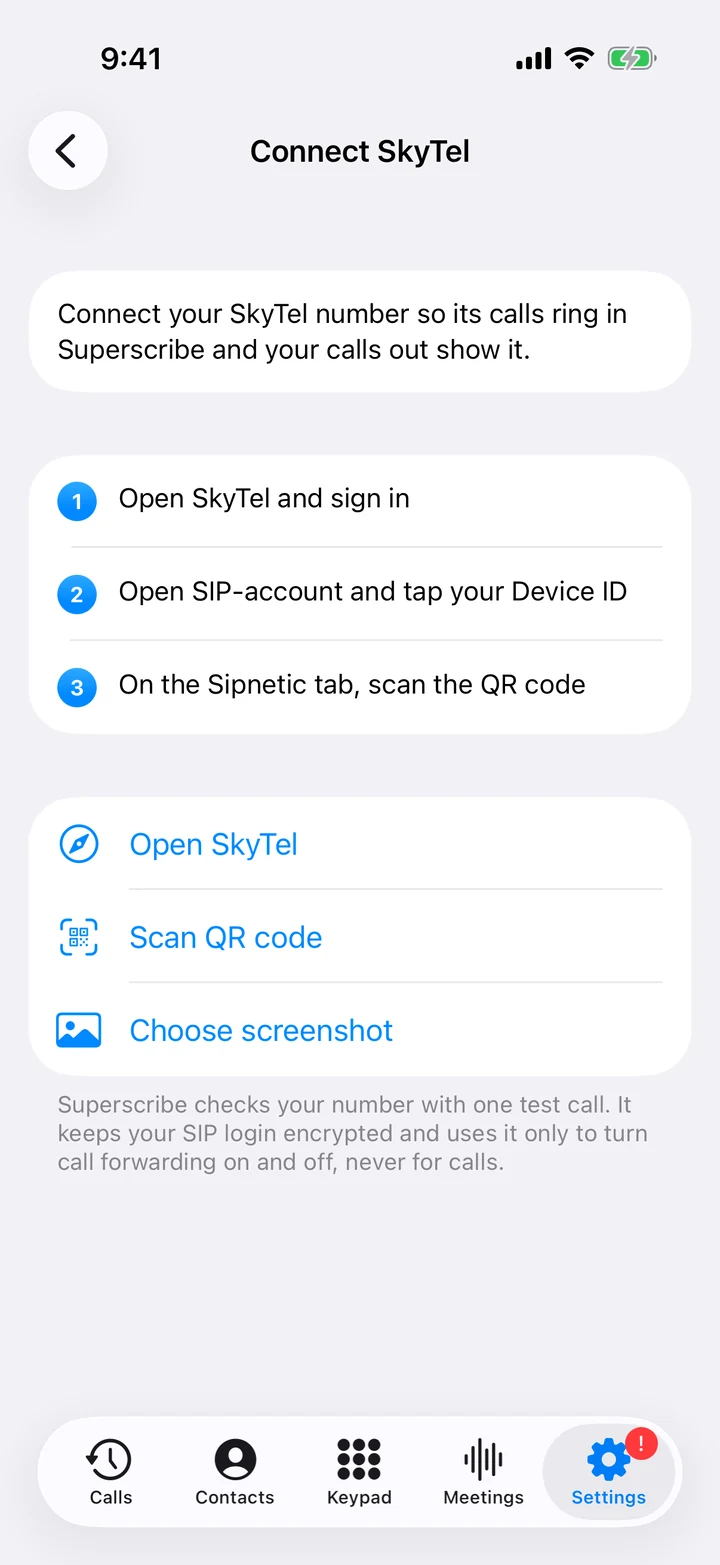
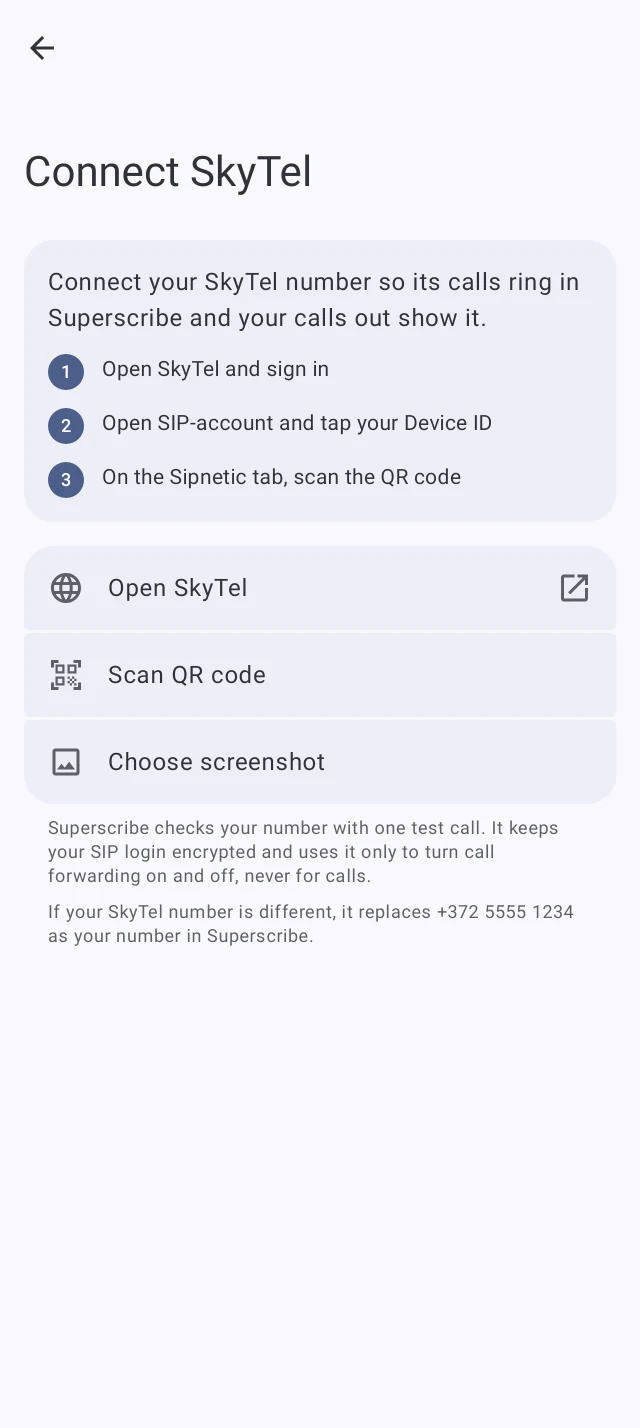
- In Superscribe, open Settings. Under Partners, tap SkyTel.
- Tap Open SkyTel and sign in to your SkyTel account.
- Open “SIP-account” and tap your Device ID.
- On the Sipnetic tab, tap Scan QR code in Superscribe and point the camera at the code. If you opened the page on the same phone, take a screenshot and tap Choose screenshot instead.
Superscribe then checks your number with one test call. When the check is done, the screen says Connected, with your number. If Superscribe had another number of yours before, your SkyTel number takes its place.
Ring in Superscribe
The SkyTel screen has one switch, Ring in Superscribe.
- On: Superscribe turns on call forwarding at SkyTel and makes a test call. Calls to your number ring in Superscribe, and your SkyTel phone does not ring. If the test call does not reach Superscribe, forwarding is turned off again and the app tells you.
- Off: Superscribe turns call forwarding off at SkyTel, and calls ring on your SkyTel phone as before.
You do not need the forwarding codes from the Call Forwarding card while SkyTel is connected. The card says forwarding is set under SkyTel.
Remove SkyTel
Remove SkyTel turns call forwarding off and deletes your SkyTel login from Superscribe. Your number stays verified. If you had not set up caller ID for that number before you connected SkyTel, your calls out stop showing it. If Remove fails, for example because SkyTel cannot be reached, you can still remove it with Remove anyway. Then dial *73 on your SkyTel phone yourself, or calls to your number may not reach you.
What Superscribe keeps
The phone sends the code to Superscribe once and does not keep it, and Superscribe does not keep the code either. The code holds your SkyTel login. Superscribe uses the login for the one test call that checks your number, then keeps it encrypted and uses it only to turn call forwarding on and off. It never makes or takes your calls with it. The camera is used only to scan the code you point it at. If you took a screenshot of the code, you can delete it from Photos when you are connected.
Limits
- You need a SkyTel account with a SIP account. Only the Sipnetic code works.
- One SkyTel number per Superscribe account, and a number already connected to another Superscribe account cannot be connected again.
- Calls in Superscribe come with the Solo, Business Voice and Sales plans.
- You can switch forwarding on or off 10 times in 24 hours.
- Connect SkyTel is on iPhone and on Android (version 1.0.4).
Also in 1.3.13
- Pick the microphone for the keyboard. When more than one microphone is connected, for example a headset, the Superscribe keyboard shows which one it dictates with. Tap it to pick another: Auto, iPhone, or a connected microphone. Auto works as before.
- A globe for Auto-detect. The language chip on the keyboard shows a globe when the language is Auto-detect. When you pick a language, it shows its two letters.
Get it
- iPhone: Superscribe Phone 1.3.13, out since 8 November 2026 on the App Store.
- Android: Superscribe is on Google Play. Connect SkyTel is in version 1.0.4, out since 8 Nov.