Call Notes in CarPlay: Superscribe 1.2.1
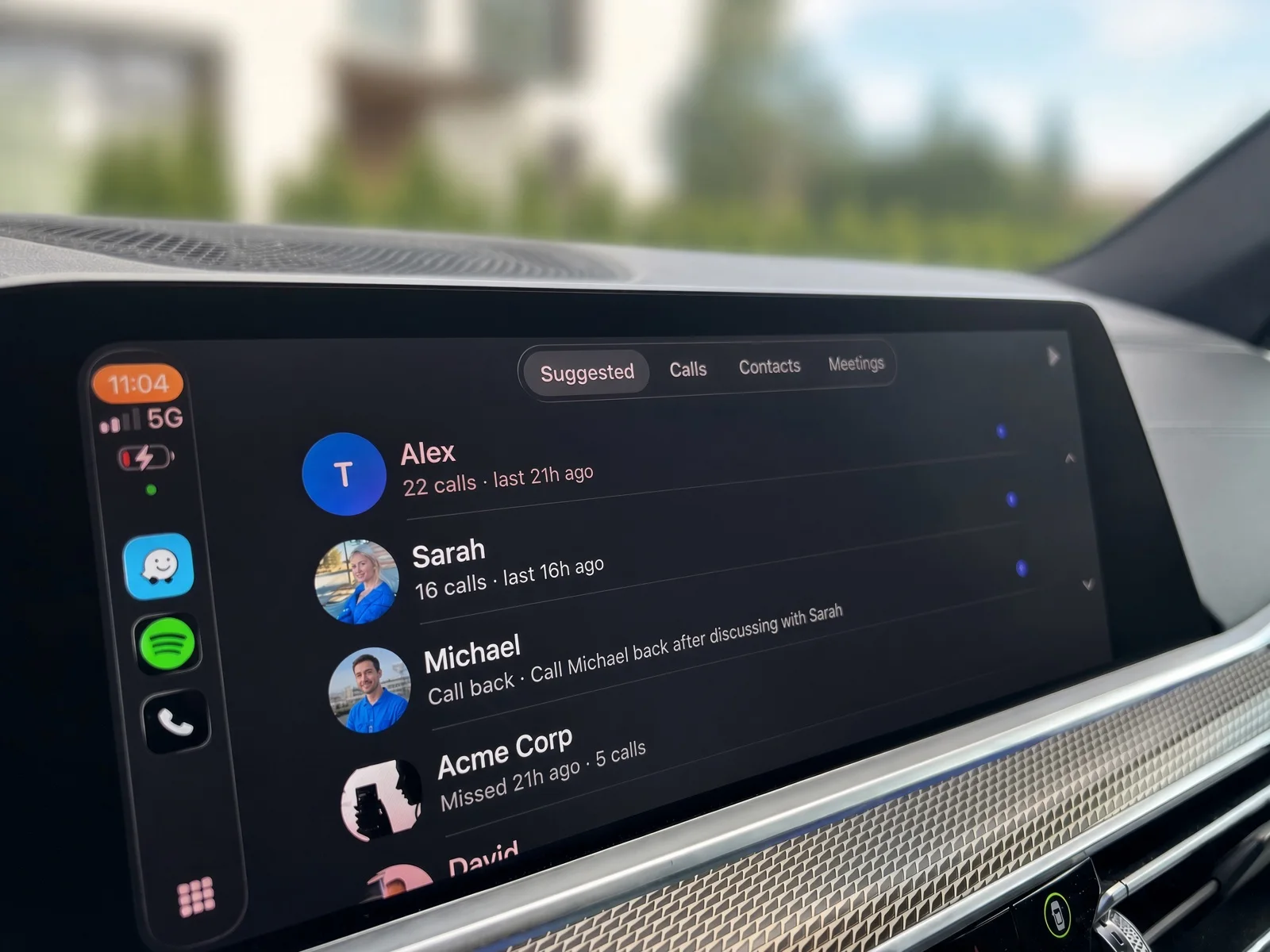
I pulled four builds of Superscribe 1.2.1 back from App Review in one morning.
The first crashed when I connected it to a real car with a real address book. The next one let a meeting started on the car drift out of sync with the phone. Another did not refresh the notes after a recording finished. The last one had a green microphone check that looked like it belonged to a different app.
That was annoying. It was also the right way to ship this. CarPlay call notes have to work from the driver’s seat, not only in a simulator.
Superscribe Phone 1.2.1 is now live on the App Store. It puts your calls, contacts, recordings, meeting controls and follow-ups on the car display.
Why call notes belong in the car
The people who need call notes most are often between places. A real-estate agent leaves a viewing and calls the owner. A sales rep rings the next prospect from the car. A consultant finishes a client visit, parks outside the next one and tries to remember what was promised.
The call happens through the car already. The notes usually do not.
I wanted the useful part of Superscribe to follow the call. When you hang up, the short summary should be visible without digging through the phone. If somebody needs a call back, that should be one tap. If you need the exact wording, the recording and full notes should still be there when you are parked.
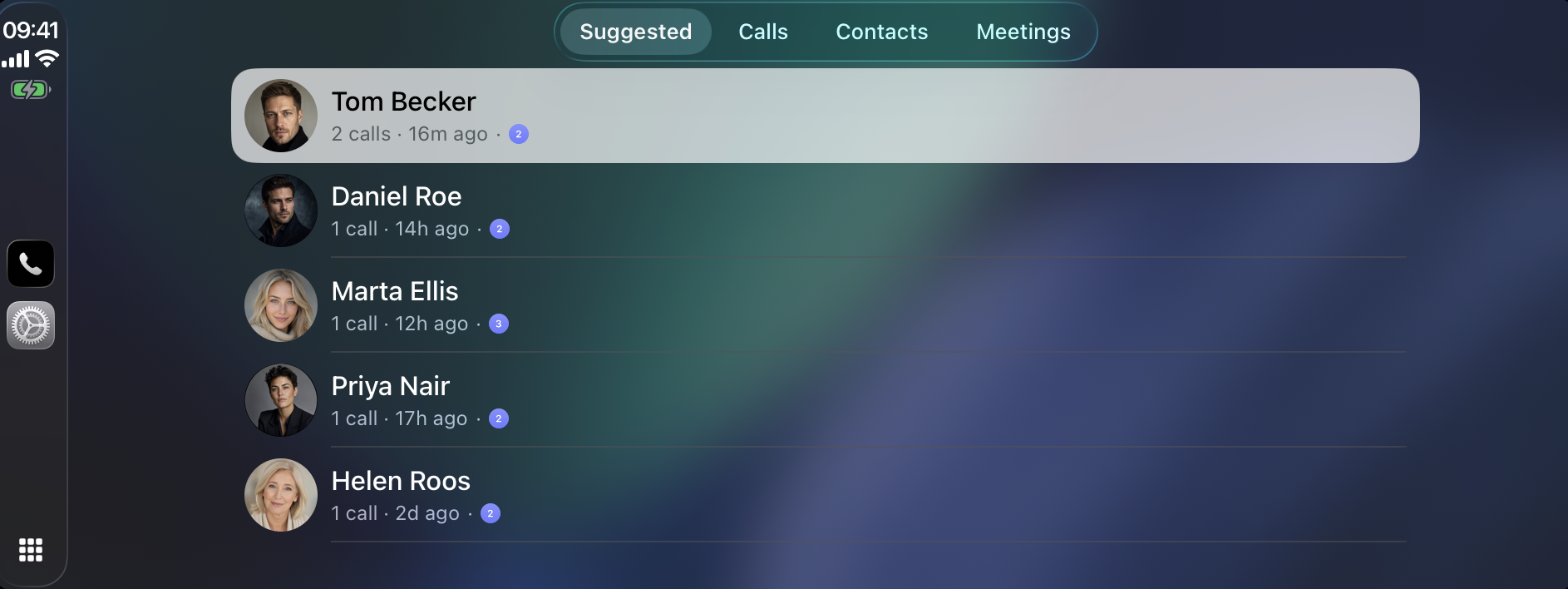
The screenshot uses the synthetic demo account. The names, faces and call history are not customer data.
The four CarPlay tabs
Superscribe opens with four simple places to go:
- Suggested brings forward the people you are most likely to call. Recent calls, repeated calls, missed calls and an open call-back all affect the order. The line under each name explains why it is there.
- Calls shows your recent business calls with a short summary under each person. Open one for the longer notes, playback and follow-up actions.
- Contacts uses the same address book as the iPhone app. Contact photos and company contacts carry across, and a card can show the last call and its notes.
- Meetings starts or resumes an in-person meeting recording and lists saved calls and meetings for playback.
This is intentionally smaller than the phone app. A car screen is not the place for editing a transcript. It is the place for finding the person, hearing the relevant recording and dealing with the next action with as little tapping as possible.
What happens after the call
Every recorded call still gets processed by the phone workflow. Superscribe creates a title and summary, keeps the transcript and recording together, and looks for a small set of things worth doing.
Those suggested actions are explicit. Call the person back. Add an agreed time to Calendar. Create a reminder. Save an unknown caller. Turn a spoken list into a Reminders checklist.
Nothing fires by itself. The button is the approval.
In CarPlay, the call card shows the notes and recording beside those actions. If a call-back is the reason somebody appeared in Suggested, calling from that row also closes the suggestion. Pipedrive users still get the call filed as an activity through the existing account automation.
Meetings from the car display
The car is often a quiet room between appointments. Superscribe can now start a meeting recording there too.
Open Meetings, choose the microphone that will capture the conversation, then start. During the meeting, the display shows the live clock, pause and end controls, and anyone added by phone. A participant can be called into the same meeting, heard through the car and included in the same speaker-separated transcript.
When the meeting ends, the row moves through uploading and transcribing until the notes are ready. Calls and meetings can then play through the car speakers with the system Now Playing controls.
Use these controls when parked or when it is safe and legal to do so. Superscribe does not turn a transcript into a reason to stare at a screen while driving.
The other half of 1.2.1 is on the lock screen
CarPlay was the visible addition, but the lock-screen work may save more taps.
When a call or meeting produces a suggested action, it can appear as a Live Activity with real buttons. You can call back, create a reminder, save a checklist or dismiss it without opening the app. Tapping the card opens the exact call or meeting behind it.
Checklists are new too. Say a list during a call or meeting, approve it once, and Superscribe creates a separate Reminders list with one checkable item per entry.
This is the phone-first direction
In June I wrote that Superscribe had started as desktop dictation, but the clearest customer problem lived in calls. CarPlay is a fairly literal continuation of that decision.
Desktop dictation still exists, including a new free on-device edition. The phone is now the main product because it captures the work that used to disappear between the call and the CRM.
What CarPlay support does not mean
Superscribe is not a replacement phone system for the car, and it does not ask you to port your number. You keep answering and placing calls with the number you already use through Superscribe Phone.
It is iPhone and CarPlay only today. Android Auto is not supported. CarPlay layouts also vary by car, so the display in your dashboard may be wider or shorter than the one shown here.
Recording and transcription rules differ by location. Tell people when a call or meeting is being recorded and follow the rules that apply to you.
Try the real test
Install Superscribe Phone, connect it to CarPlay, and make one ordinary business call. Park, open the call card and check whether the summary is good enough that you do not have to reconstruct the conversation.
That is the test I used in the car. It is also the only one that matters.
For the phone workflow outside the car, see AI call notes for iPhone and how Superscribe records an in-person meeting.