Join a Meeting and Superscribe Asks to Record It
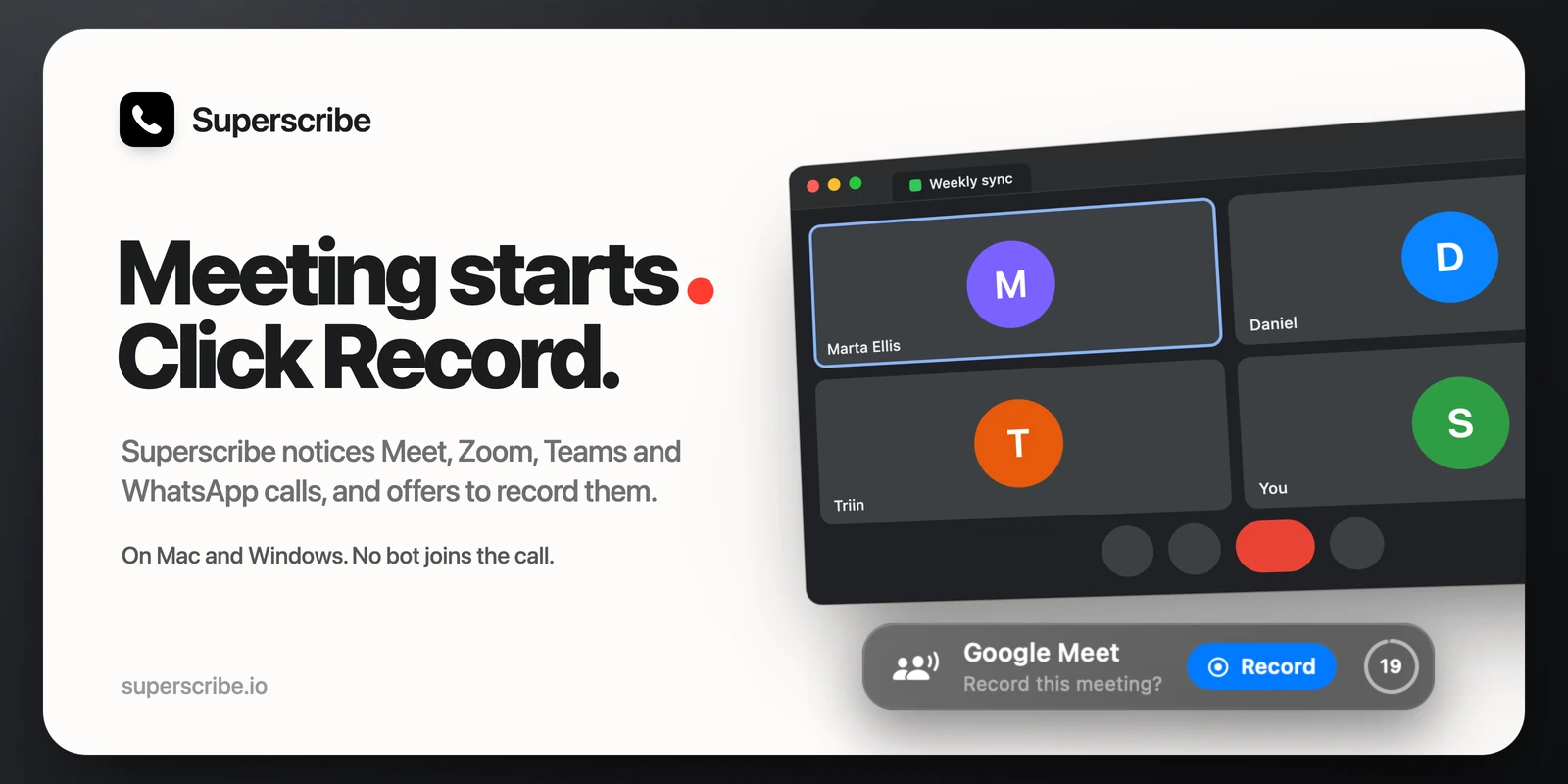
Most of the meetings I forgot to record, I forgot in the first minute. I joined, said hello, got into the subject, and remembered Superscribe when we were already saying goodbye.
So now the app remembers for you. When a meeting starts on your Mac or PC, Superscribe asks if you want to record it.
How it works
Join a meeting the way you always do. A few seconds later, a small card appears at the bottom of your screen. It names the app, for example Google Meet, and asks “Record this meeting?”

Click Record and the recording starts. On a Mac, the first time, macOS asks once for permission to record the computer’s sound. If you do not want to record, do nothing: the ring next to the button counts down 20 seconds, then the card goes away. Click the ring to close it sooner. The countdown waits while your pointer is on the card.
If you ignore the card, the meeting is not forgotten. While the meeting goes on, the Superscribe icon has a small dot, in the menu bar on a Mac and in the system tray on Windows. Its menu offers Record Google Meet (or the name of your app), and one click there starts the recording. On Windows, right-click the tray icon to open that menu. The icon may be hidden under the small arrow next to the clock.
The recording itself works as before. Superscribe records what your computer plays, which is the other people, and your microphone, which is you. No bot joins the meeting and nobody gets a link. When you end it, you get a transcript split by speaker, a summary and the follow-ups.
Which meetings it notices
- In a browser: Google Meet, Microsoft Teams, Zoom, Webex, Whereby, Jitsi Meet, Slack huddles and a few others, in Chrome, Edge, Firefox, Brave, Arc, Vivaldi and Opera, and in Safari on a Mac.
- Meeting apps: Zoom, Microsoft Teams, Slack, Webex, Discord, GoTo Meeting and RingCentral, and FaceTime on a Mac.
- Calls in messaging apps: WhatsApp, Telegram, Signal and Viber. For these, and for FaceTime, the card asks “Record this call?”

A voice message does not count. A messaging app only counts while it uses your microphone and plays sound at the same time, the way a call does.
When the meeting ends
When the meeting app stops using your microphone for 30 seconds, usually because you left the call, the meeting bar asks “Meeting over?” (or “Call over?” for a call). Click End to finish, and the recording goes to your account.

If you do not answer, the recording keeps going, so a quiet moment never cuts off the end of your meeting. When you are done, end it from the bar or from the menu.
How it knows
Your computer can tell which apps are using the microphone, and Superscribe checks every two seconds. For a meeting in a browser, it also reads the window’s title, where the meeting site shows its name. On a Mac, that uses the Accessibility permission you gave the app for dictation, so there is nothing new to allow. Without it, meetings in a browser go unnoticed, but meeting apps and calls still work. The check happens on your computer, nothing about it is sent anywhere, and nothing is recorded until you click Record.
Good to know
- On a Mac, it needs macOS 14 Sonoma or newer. On an older Mac, start a meeting from the menu, as before.
- In a browser, Superscribe only sees the tab at the front of each window. A meeting in a tab behind another one is noticed when you switch to it.
- To turn it off, switch off Detect meetings in the Superscribe menu (on Windows, right-click the tray icon). You can still start a meeting from the menu yourself.
- It is not in Superscribe Lite, and you need to be signed in. Recording meetings is part of the Solo, Business Voice and Sales plans.
- No bot joins, so nobody in the meeting sees that you are recording. Tell the others you are recording. The law may require it, and it is polite.
Get it
Superscribe 0.4.12 for macOS and 0.4.8 for Windows are out. If you already have the app, quit it and open it again, then open its menu. It shows when an update is available.
New to recording meetings on the computer? The September post covers how it works, and how to take calls on your Mac or PC.