Dictation on Mac and PC: Auto Clean and a Small Countdown
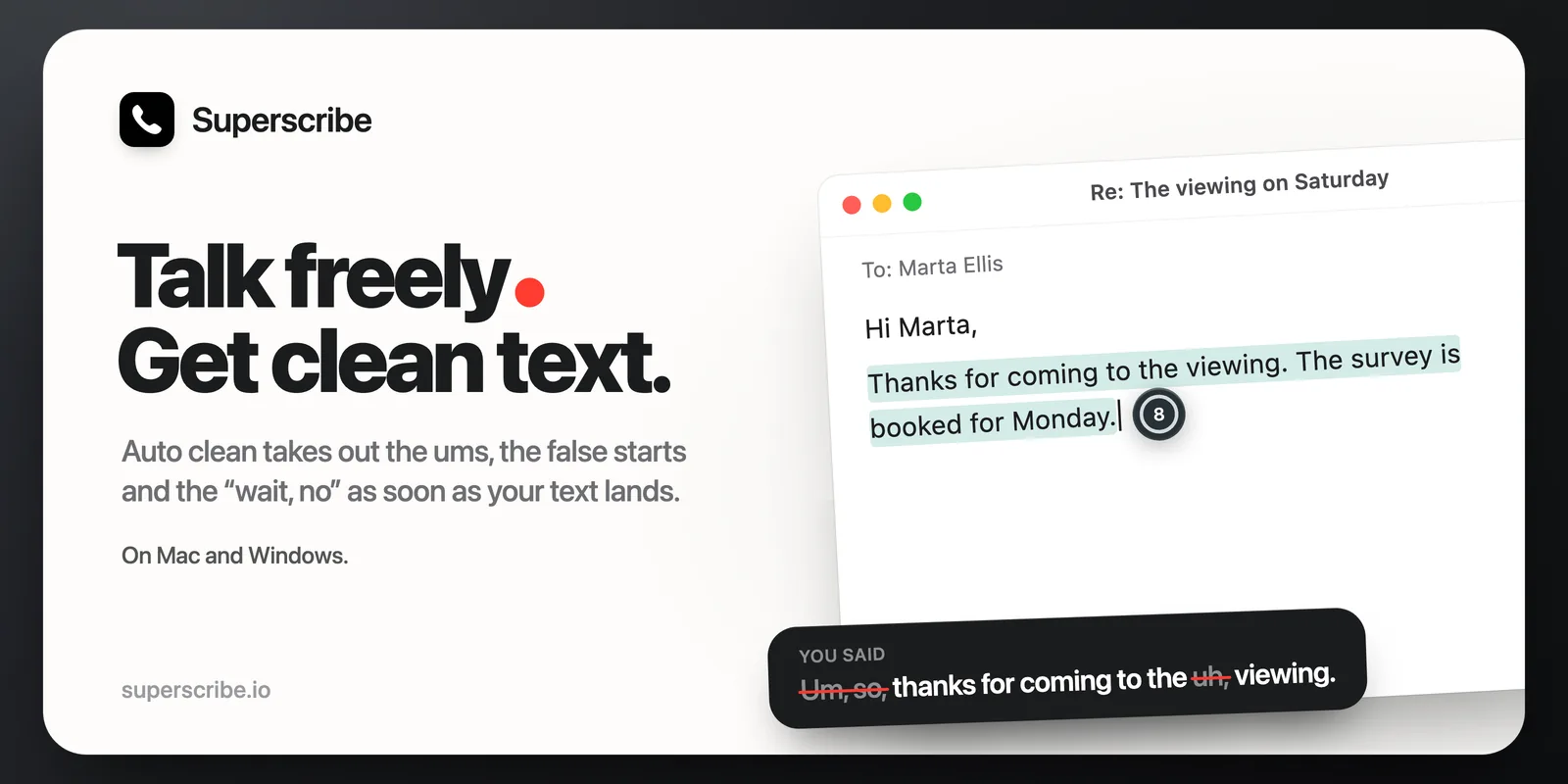
Two changes to dictation in Superscribe for Mac and Windows. One you switch on yourself: Auto clean. The other is on from the start: a small countdown at the end of your text.
Auto clean
When we talk, we say “um”, start a sentence twice and correct ourselves out loud. Superscribe already had a Clean correction for that, but you had to pick it after each dictation. Auto clean picks it for you, every time, right after your text is typed:
- Filler words go, like “um”, “uh” and “you know”.
- False starts go: the sentence you began and then dropped.
- When you correct yourself out loud, only the correction stays. You say “Send this to Mark. Wait, no. Send this to Maria.” and the text that stays is “Send this to Maria.”
The cleaned text replaces what was typed, in the app you dictated into. The other corrections are still there afterwards, so you can still pick Formal or Shorter.
To switch it on, click the Superscribe icon in the menu bar on a Mac, or right-click it in the system tray on Windows, and turn on Auto clean. It is off until you turn it on. If you already clean your dictation with your own AI key, it starts on.
Who can use it:
- Dictation through the Superscribe cloud: every signed-in account.
- Dictation that runs on your computer: on a paid plan, Superscribe cleans it too. Only the text is sent for cleaning, not your voice.
- Free accounts with dictation on the computer, and Superscribe Lite: cleaning needs your own key from an AI provider. Add it on the Cleanup tab in Settings and tick Enable cleanup with my own API key.
A small countdown at the end of your text
After each dictation, Superscribe used to show a bar under your cursor, with the corrections. Now a small ring sits at the end of the text you just dictated, and counts down from 8. On a Mac, in most apps, the new text also lights up for a moment, so you can see what was typed.
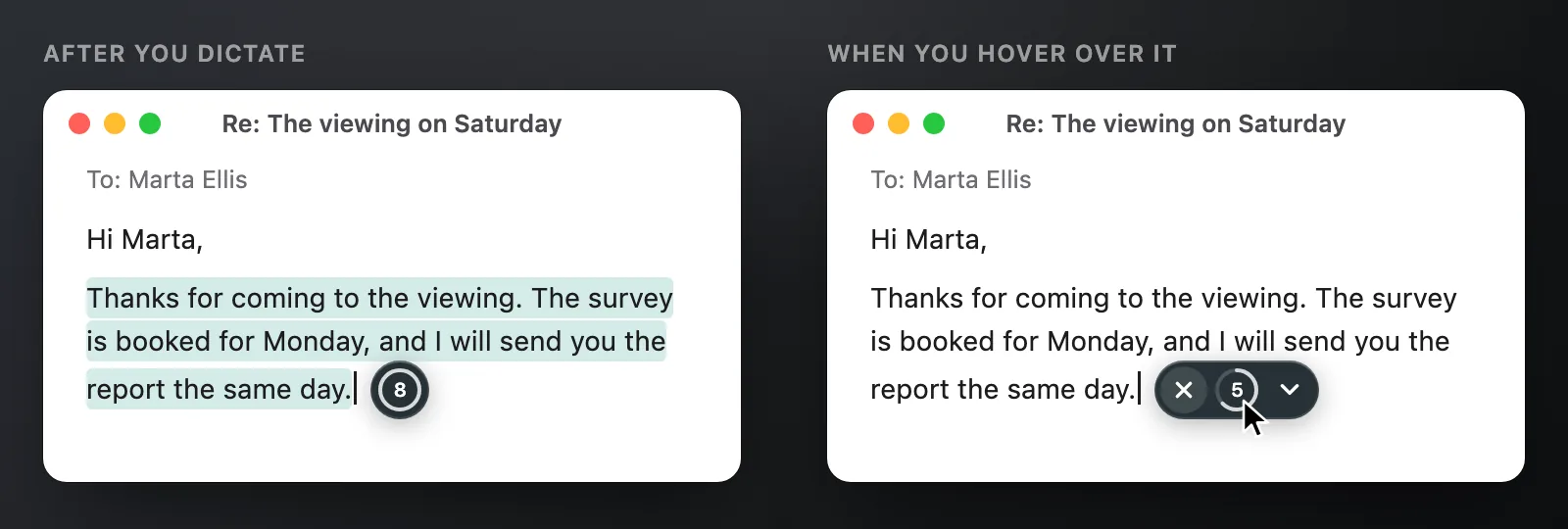
- Leave it, and the ring runs out and goes away. Your text stays as it was typed (or cleaned, with Auto clean).
- Hover over it, and the countdown stops. A close button and an arrow appear.
- Click the arrow for the corrections: Improve, Shorter, Formal, Friendly, Clean and Translate.
- Press Esc to keep the text as it is. If you just keep typing, the ring goes away by itself.
Some apps do not tell other apps where their text is. There, the ring waits where the recording bar used to be.
The countdown is on by default wherever Superscribe offers corrections after a dictation. If you prefer the bar, switch off Compact countdown in the same menu as Auto clean.
Get it
Everything in this post is in Superscribe 0.4.16 and later for Mac, and 0.4.11 and later for Windows. The latest versions are 0.4.18 for macOS and 0.4.13 for Windows. If you already have the app, quit it and open it again, then open its menu. It shows when an update is available.
Do you also dictate client names? Teach Superscribe your words, and it writes them your way, in dictation and now in your call notes too.