Your Words Now Fix Names in Calls and Meetings
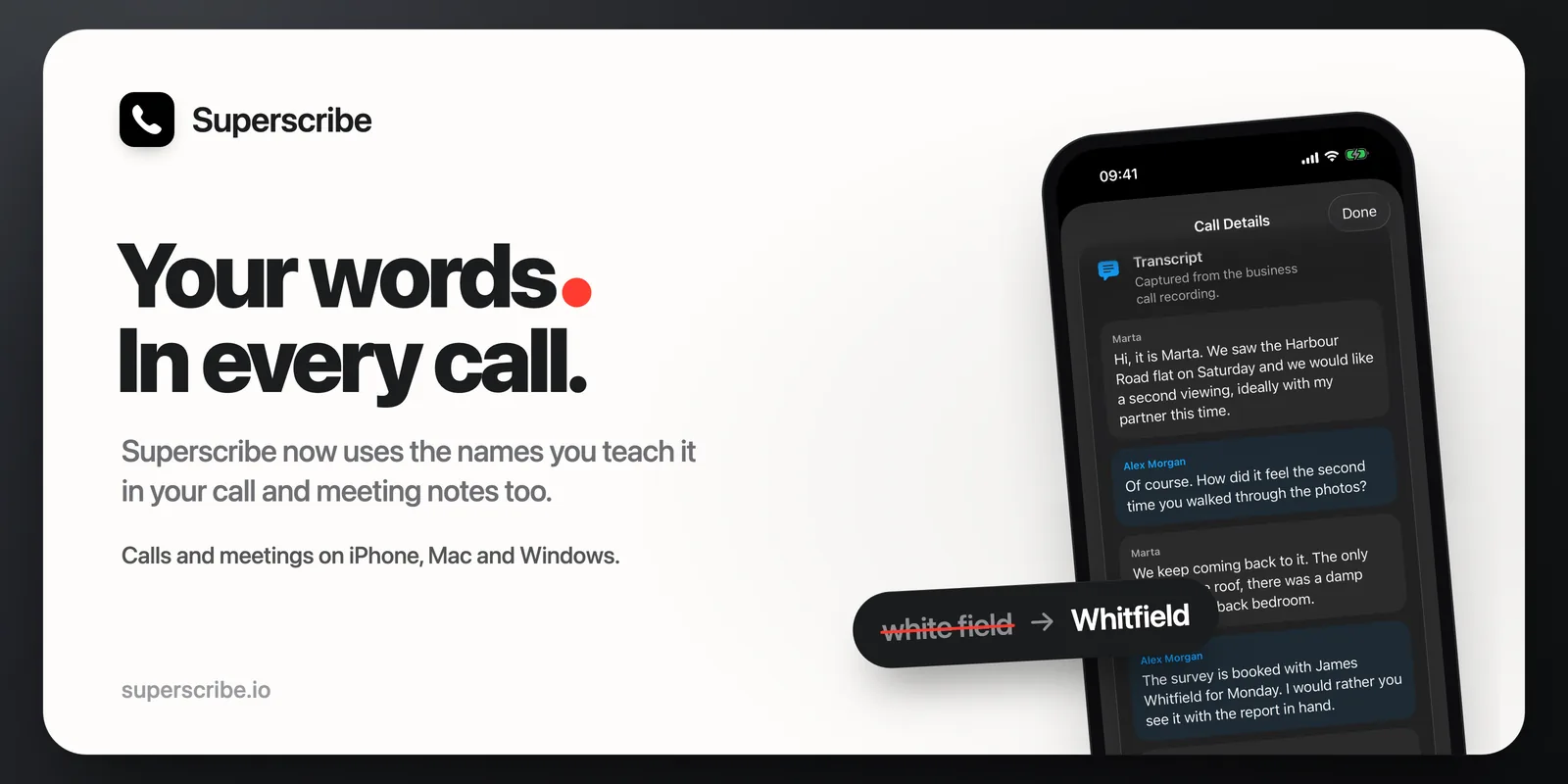
Last week I wrote about Words, the list of names and terms you teach Superscribe. Then it worked only in dictation. Now your calls and meetings use it too.
That matters most in the notes. When a client’s name or the street of a viewing comes out wrong in the transcript, it comes out wrong in the summary and in the follow-ups as well. Now Superscribe corrects it there too.
Your words in calls and meetings
Since 9 October, Superscribe uses your list in:
- Calls on your iPhone, Mac or PC: in the transcript made after the call, and in the live one the iPhone shows while you talk.
- Meetings you record on your iPhone, Mac or PC.
The summary and the follow-ups are written from the corrected transcript, so they have your spelling too, and so does the note Superscribe writes for Pipedrive if you have connected it. There is nothing to update or switch on. The list is saved to your Superscribe account, and every call and meeting on that account uses it.
It also finds ways you did not list
Under Heard as you write what dictation makes of a word, for example “how gas” for Haugas. But a name can come out in more ways than you can guess, and the next call may say “hau gas”.
So in the transcript made after a call or meeting, Superscribe also looks for words that sound like one of yours. When it finds one, AI reads the sentence around it and decides if you meant your word. Only then is the spelling changed. Very short names, like Anna or Siim, are not checked this way, and dictation does not use this check.
Windows has its own Words tab
Before, you could add words only on a Mac. Now Superscribe for Windows has the same tab. Right-click the Superscribe icon in the system tray (it may be hidden under the small arrow next to the clock), open Settings… and go to Words. Type the spelling you want under Spelling, what dictation writes instead under Heard as, and click Add.
Dictation that runs on the PC itself now uses your words as well. Before, only dictation through the Superscribe cloud did.
Superscribe offers to add a name you fix
You usually notice a wrong name only when you see it in your text. So now, when you fix a name by hand in text Superscribe has just typed, it asks if it should remember the name.
Say you dictate a message and Superscribe writes “how gas”. You change it to “Haugas”. A card appears:

Click Add, and Haugas goes on your list, with “how gas” under Heard as. If Haugas is already on the list, “how gas” is added to it. If you do nothing, the card goes away after 20 seconds.
- It asks only when you replace one to three words with one to three that sound alike and make a name or a term. Rewording a sentence, deleting words or typing on is never asked about.
- For two minutes after a dictation, it looks at the text box it typed into and compares only the words it typed. It keeps nothing unless you click Add, and it never reads password fields.
- To turn it off, turn off Suggest words from my fixes on the Words tab.
Good to know
- You add and remove words on your Mac or PC. The iPhone app has no Words screen, but your calls and meetings there use the list from your account.
- A new word works from your next call, meeting or dictation. Dictation that runs on your other computer gets it the next time Superscribe starts there.
- You can add up to 100 words, each with up to five entries under Heard as.
- In Superscribe Lite, the free version, the list stays on that computer and works in dictation.
Get it
Your words in calls and meetings need no update. The Words tab on Windows and the question after you fix a name came in Superscribe 0.4.14 for Mac and 0.4.10 for Windows. The latest versions are 0.4.18 for macOS and 0.4.13 for Windows. If you already have the app, quit it and open it again, then open its menu. It shows when an update is available.
New to Words? The first post shows how to add a word, step by step.