Teach Superscribe the Names It Gets Wrong
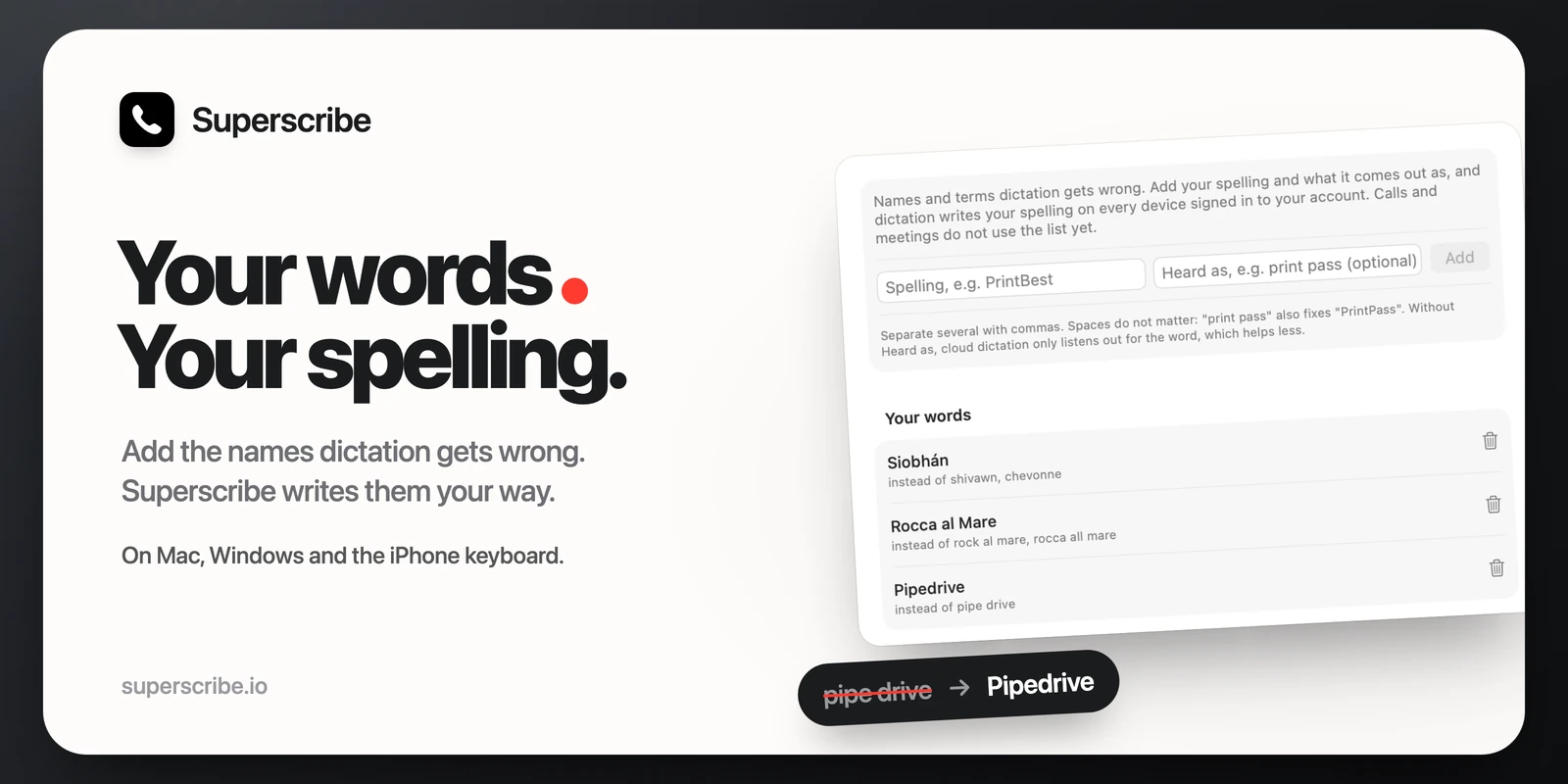
Every dictation app has a word it never gets right. For me it was the name of a client, PrintBest. Superscribe wrote “print pass” or “bring best”, and I fixed it by hand, every time.
Now you can teach it. Superscribe for Mac has a new Words tab in Settings. Add the spelling you want and what dictation writes instead, and from then on Superscribe writes your spelling.
It is made for the words no dictionary knows: the names of your clients and their companies, street names, the people you work with, the products you sell.
How to add a word
- Click the Superscribe icon in the menu bar and open Settings.
- Go to the Words tab.
- In the Spelling box, type the word the way you want it, for example Pipedrive.
- In the Heard as box, type what dictation writes instead, for example “pipe drive”. Separate several with commas. This box is optional.
- Click Add.
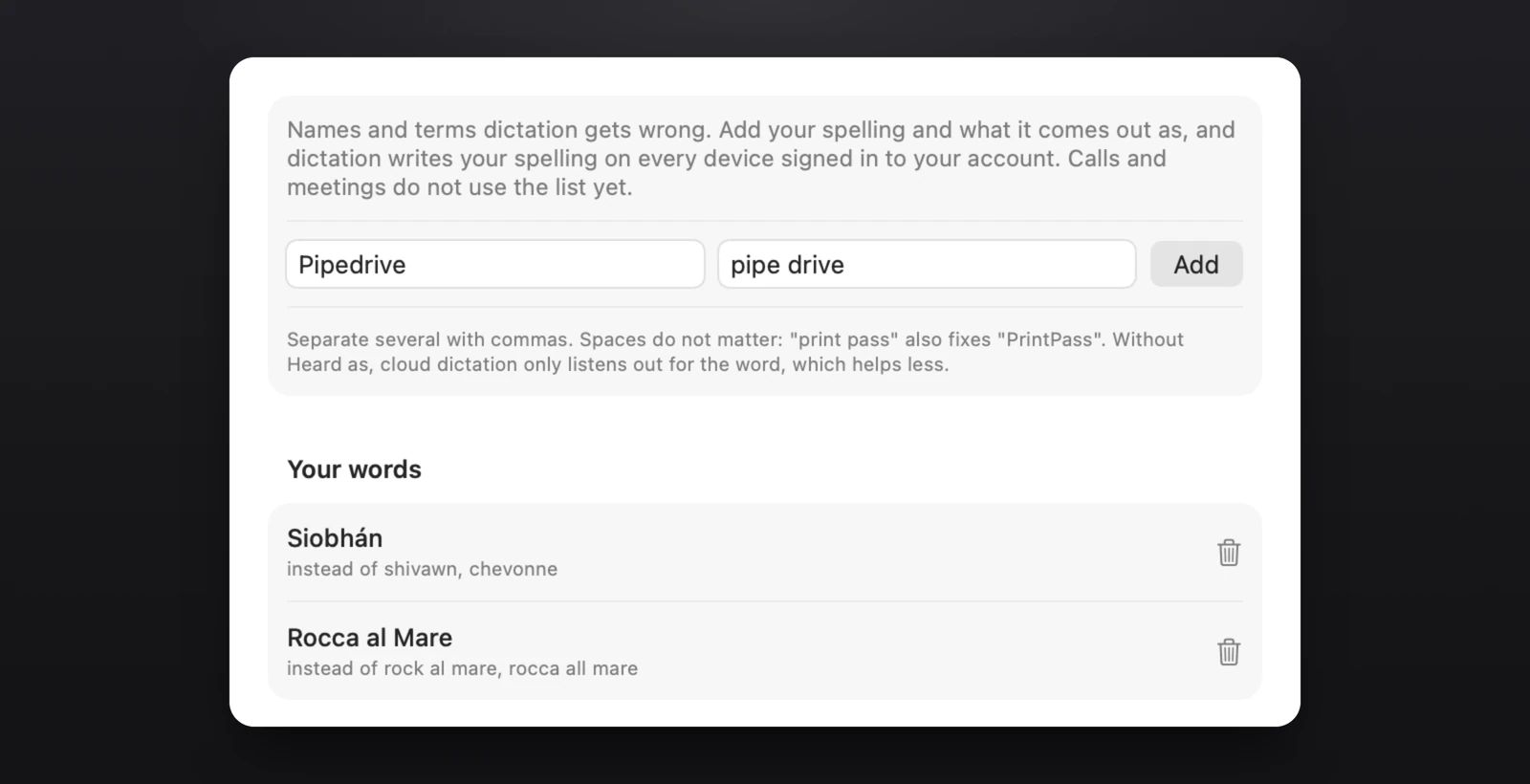
Spaces in what you type under Heard as do not matter: “pipe drive” also fixes “PipeDrive”, “pipedrive” and “pipe-drive”. Capital letters do not matter either, and Superscribe writes the word exactly as you typed it in the Spelling box. It only changes whole words, so “pipe” on its own stays “pipe”.
You can leave the Heard as box empty, but the word works best with it. Without it, Superscribe still fixes the capital letters, so “pipedrive” becomes “Pipedrive”.
Where it works
The list is saved to your Superscribe account, so it works in dictation everywhere you are signed in:
- Superscribe for Mac, with cloud dictation and with dictation that runs on the Mac.
- Superscribe for Windows, with the Superscribe cloud.
- The Superscribe keyboard on iPhone.
You set the words up on the Mac. Windows and the iPhone need no update: they use the list from your account. In Superscribe Lite, the free version, the Words tab is there too, and the list stays on that Mac.
If you always dictate in one language
When you pick your spoken language in the app’s settings instead of Auto, the cloud is also told to listen for your words while you speak. This does not apply to Estonian. On Auto, Superscribe still writes your spelling whenever dictation writes one of the ways you added under Heard as.
Good to know
- You can add and remove words only in the Mac app for now, so you need a Mac to set them up. To change a word, remove it and add it again.
- It is for dictation. Calls and meetings do not use your words yet.
- On Windows it does not work with dictation that runs on the PC itself, only with the Superscribe cloud.
- You can add up to 100 words, each with up to five entries under Heard as.
- A new word works from your next dictation.
Get it
The Words tab is in Superscribe for macOS since version 0.4.9, and version 0.4.13 gives it the two boxes shown above. If you already have the app, quit it and open it again, then click its icon in the menu bar. The menu shows when an update is available. Superscribe Lite for Mac has it too; Lite does not check for updates, so download it again.