Mute in Meetings: the Recording Keeps Going
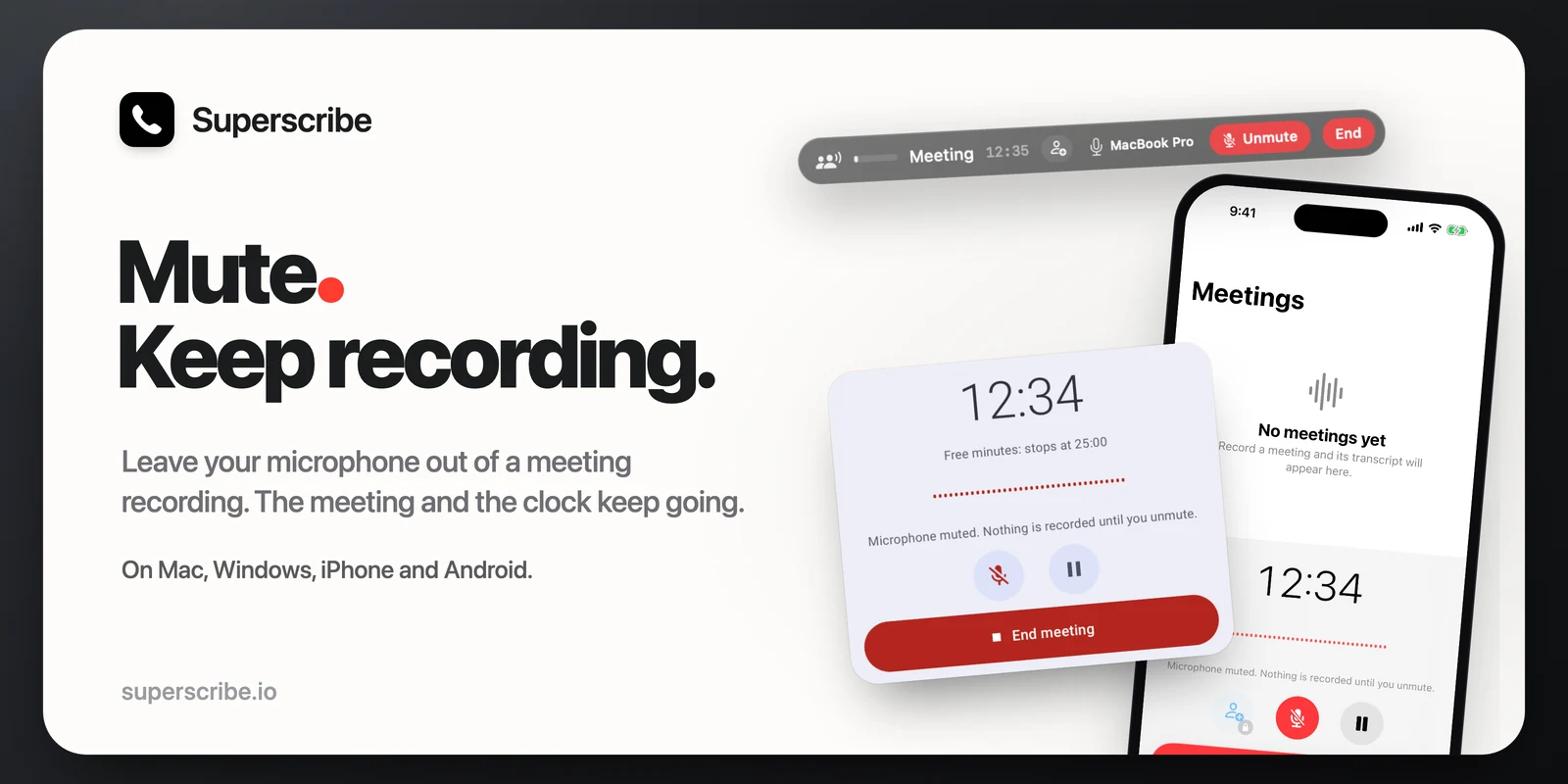
Sometimes you need to say something in the room that should not be in the meeting notes. You cough, you answer a colleague, or you take a quick call on another phone. Until now, the only way to keep that out was Pause. Now Superscribe has Mute in meeting recordings on all four apps: Mac, Windows, iPhone and Android.
Pause and Mute are not the same
- Pause stops the recording. The clock stops too, until you press Resume.
- Mute keeps the meeting recording and the clock running. Only your microphone is left out. Superscribe writes silence in its place, so the timeline of the meeting stays correct.
On Mac and Windows, the sound from your computer is still recorded while you are muted. So in a video call, the other people’s voices still go into the recording. Only your side is silent.
If people joined the meeting by phone, they stop hearing you while you are muted. On a Mac, they still hear the others in the meeting. On a Mac with Superscribe Microphone chosen in your video call app, the people in that call stop hearing you through it too.
One honest limit: Mute in Superscribe does not mute you in Zoom, Teams or Google Meet when they use your microphone directly. Use their own mute button for that.
Every meeting starts unmuted. A normal phone call is never muted by a meeting’s Mute.
Where to find it

- Mac and Windows: the meeting pill has a Mute button right before End. While you are muted, it turns red and says Unmute. The menu bar menu (Mac) and the tray menu (Windows) also have Mute microphone while a meeting records. If you switch to another microphone while muted, you stay muted.
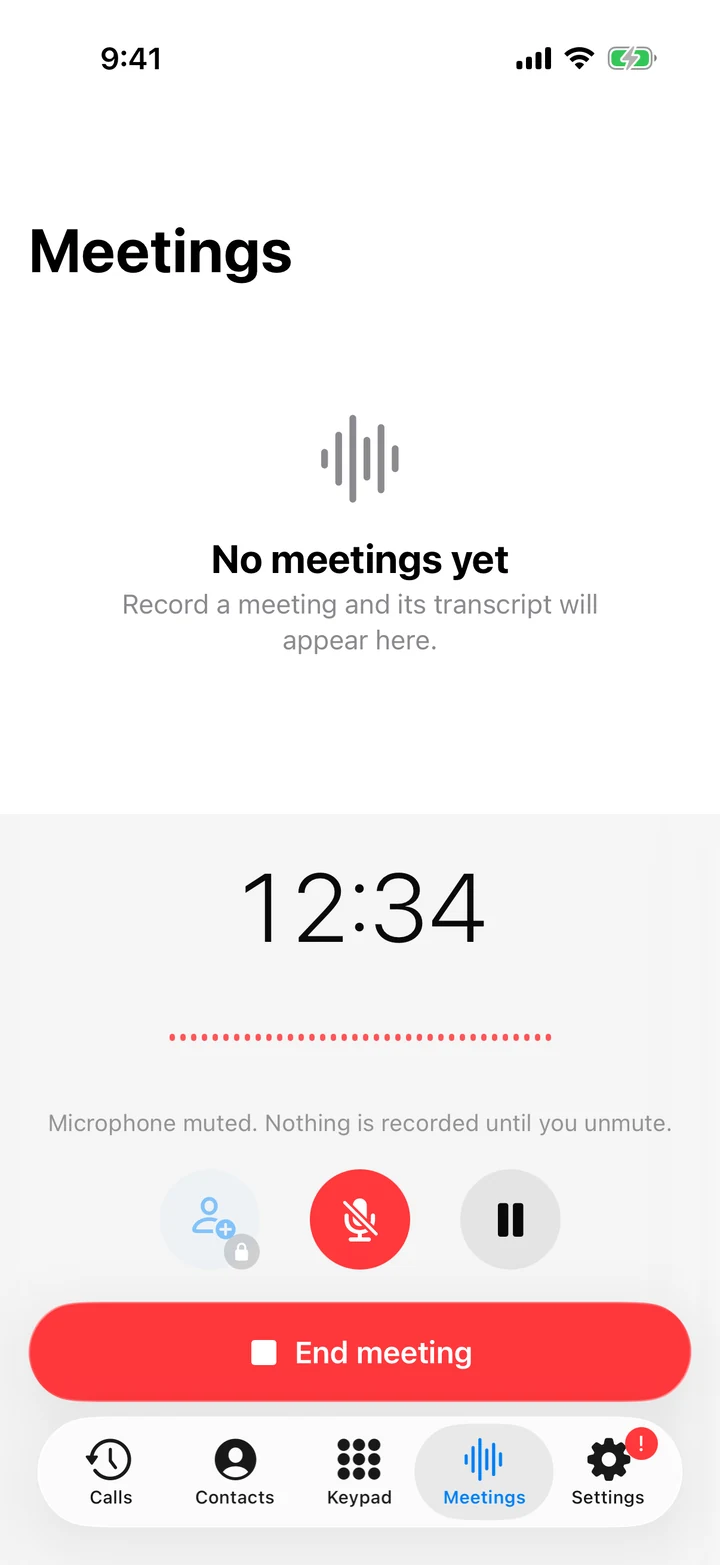
- iPhone: Mute sits next to Pause on the meeting screen. The lock screen still says Recording, because the meeting is still recording.
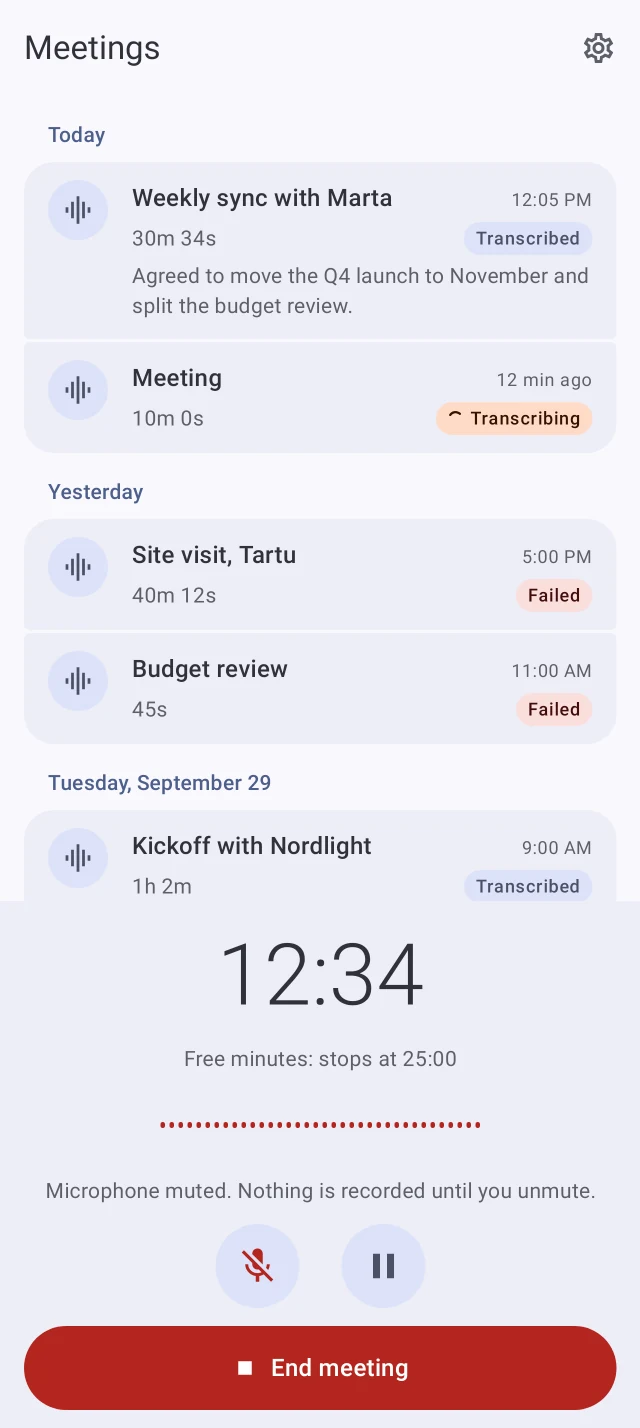
- Android: a Mute button sits left of Pause on the meeting panel. While muted, the panel says “Microphone muted. Nothing is recorded until you unmute.” The meeting notification shows “Muted” and has Mute and Unmute buttons too. If you pause while muted, you are still muted when you resume.
Also new on Mac and Windows: updates show a dot
The desktop apps now check for a new version every 5 minutes instead of every hour. When an update is waiting, a small dot appears on the Superscribe icon in the menu bar (Mac) or the system tray (Windows). On Windows, the icon’s tooltip says which version is ready. The check is one small request for the newest version number.
Get it
- Mac: version 0.4.27. Download for Mac
- Windows: version 0.4.16. Download for Windows
- iPhone: version 1.3.12 or later, on the App Store.
- Android: version 1.0.4, on Google Play since 8 Nov. Read more about Superscribe on Android.