Dictate Into a Remote Desktop From Your Mac
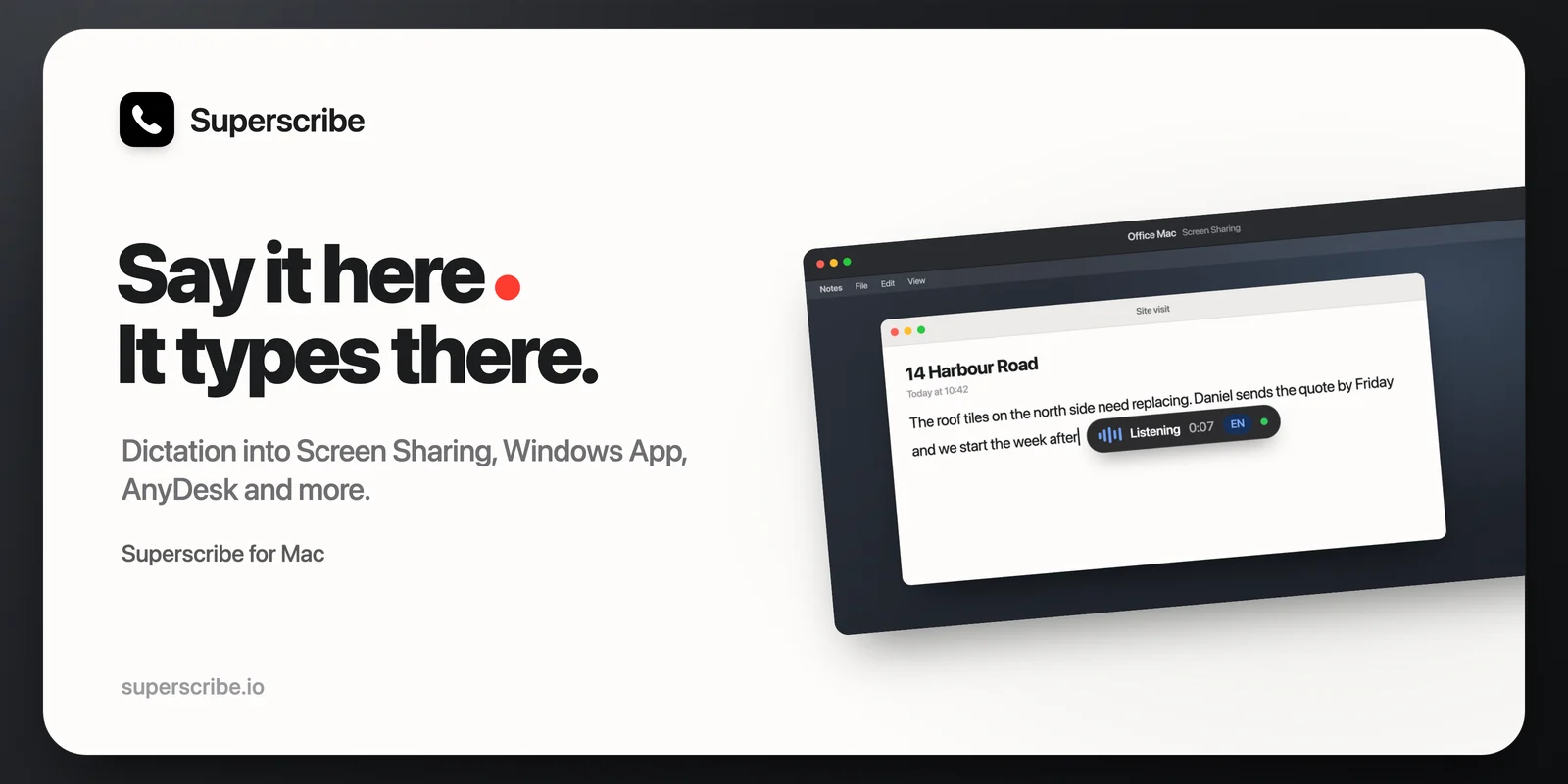
Some of my work happens on another computer. I open Screen Sharing, click into a document on the other Mac and start talking. Until last week, that did not work. The other computer got a row of the letter “a”, or old text I had copied an hour earlier.
Superscribe for Mac now types into remote desktops. Click into a text field on the other computer, press your dictation shortcut and talk. The words show up there, the same way they do in any app on your own Mac.
How it works
A remote desktop only passes on key presses, so Superscribe now types your words one key at a time, the way your own fingers would.
Live dictation works here too. The words appear while you are still talking, and small corrections happen as you go.
With Auto Paste on, Superscribe now types the finished text into the remote computer instead of pasting it. A paste there used to drop in old text that had been copied earlier. Very long texts, over about 1,500 characters, are still pasted, so check them on the other computer.
Which remote desktop apps
I tested it with Screen Sharing, the app that comes with macOS and the one I use every day. It is also switched on for these apps:
- Windows App (it used to be called Microsoft Remote Desktop)
- Jump Desktop
- Parsec
- AnyDesk
- TeamViewer
- RustDesk
- NoMachine
- Splashtop Business
- Moonlight
- RealVNC Viewer and TigerVNC
If one of them does not work for you, or you use an app that is not on the list, write to hello@superscribe.io and tell us which. In other apps, Superscribe puts the text in the normal way, and on a remote desktop that may not work.
One thing to check
Superscribe presses the key that makes each letter on your keyboard layout. If the other computer uses a different layout, some letters will come out wrong. Use the same layout on both computers.
This change is in the Mac app.
Also fixed last week
- Steadier live dictation. With Superscribe’s cloud dictation, words you said a few seconds ago no longer jump back and forth while you keep talking. Mac 0.4.3, Windows 0.4.1.
- No more frozen Mac app. Starting a recording could freeze the app, for example with Bluetooth headphones connected. Fixed in Mac 0.4.2.
- The computer keeps ringing. After your computer had been asleep, it could stay silent for incoming calls until you restarted the app. Now it reconnects by itself. Mac 0.4.4, Windows 0.4.2.
- No missed call on the phone when you answered on the computer. This needs Superscribe Phone 1.2.4 on your iPhone, which is on the App Store now.
- Fewer download warnings. Chrome and Edge had started to say the installer “isn’t commonly downloaded”. The app was always signed; the warning came from the address the file was downloaded from. Downloads now come from dl.superscribe.io, so the warning should be rare.
Get it
Superscribe 0.4.4 for macOS and 0.4.2 for Windows are out. If you already have the app, open its menu. It shows when an update is available.
Remote desktop typing is also in Superscribe Lite for Mac, the free version that works with no account. Lite does not check for updates, so download it again to get this.
If calls are what you do at your desk, last week’s post covers recording meetings and taking calls on the computer.