Your Lock Screen Counts Down to the Meeting You Agreed On
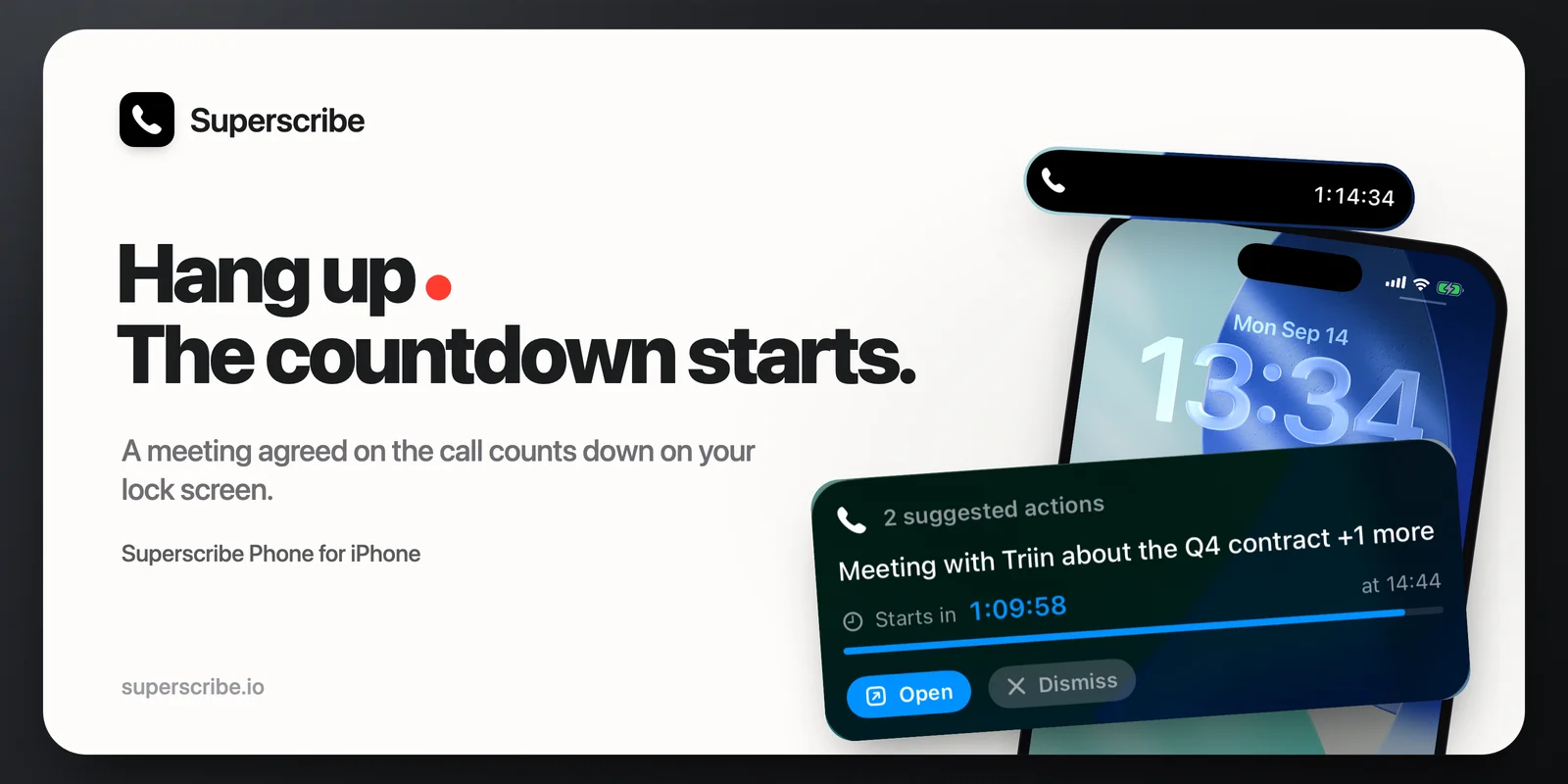
Many calls end with a time. “Let’s meet at three this afternoon.” “I’ll send you the numbers tomorrow.” Soon after you hang up, Superscribe suggests putting that meeting in your calendar or setting a reminder. Now the card on your lock screen also tells you how much time is left.
Superscribe Phone 1.2.4 is on the App Store.
A countdown on the lock screen
When a call ends with a meeting to add to your calendar, the card on your lock screen shows a live countdown to it, and the time it starts. In the last three hours before the meeting, a blue bar under the countdown gets shorter as the meeting gets closer. Before that, the bar stays full. Once the meeting has started, the card says how long ago it started.
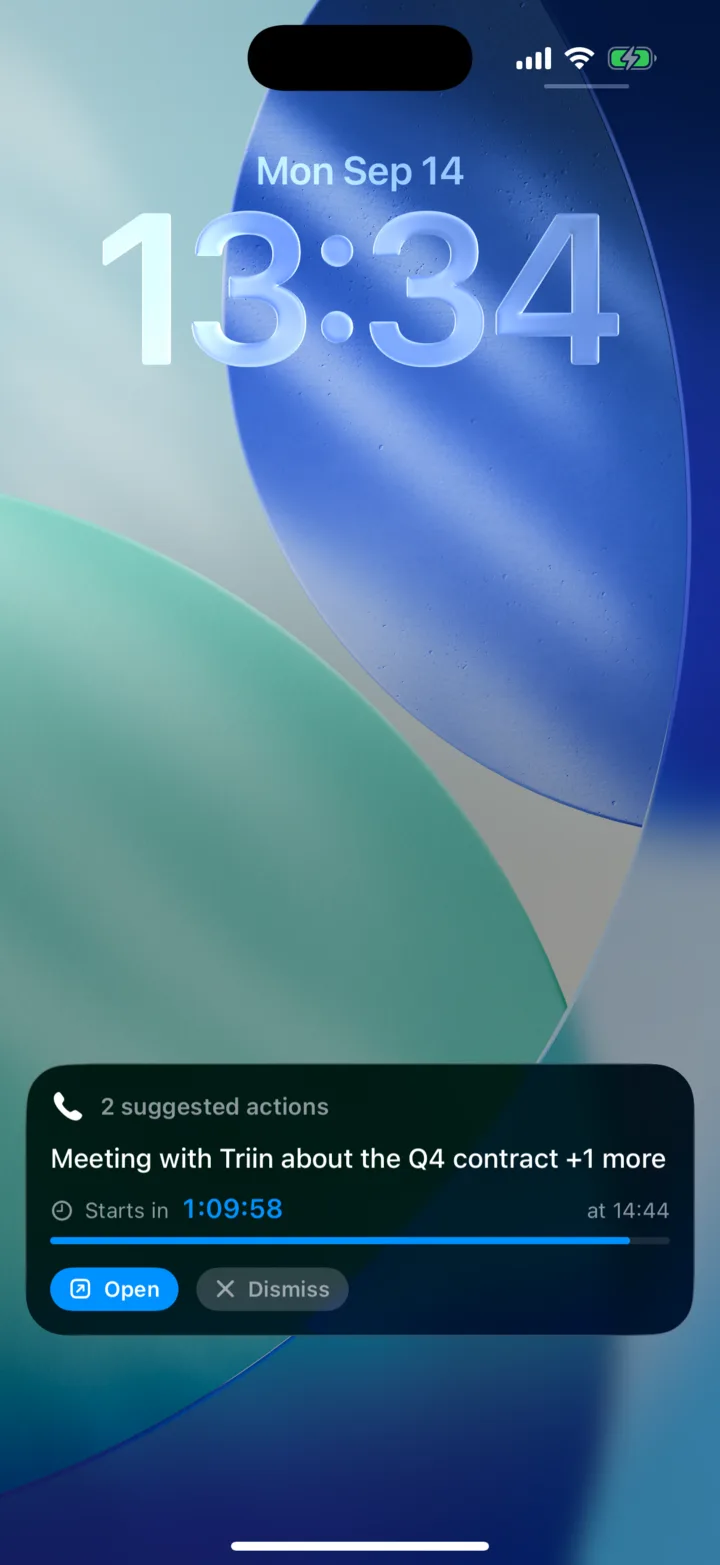
Tap Open to go to the call. One tap on the meeting there opens a calendar event that is already filled in. Or tap Dismiss if you already have it.
The card stays on your lock screen for several hours after the call, so the countdown is most useful for a meeting later the same day.
In the Dynamic Island
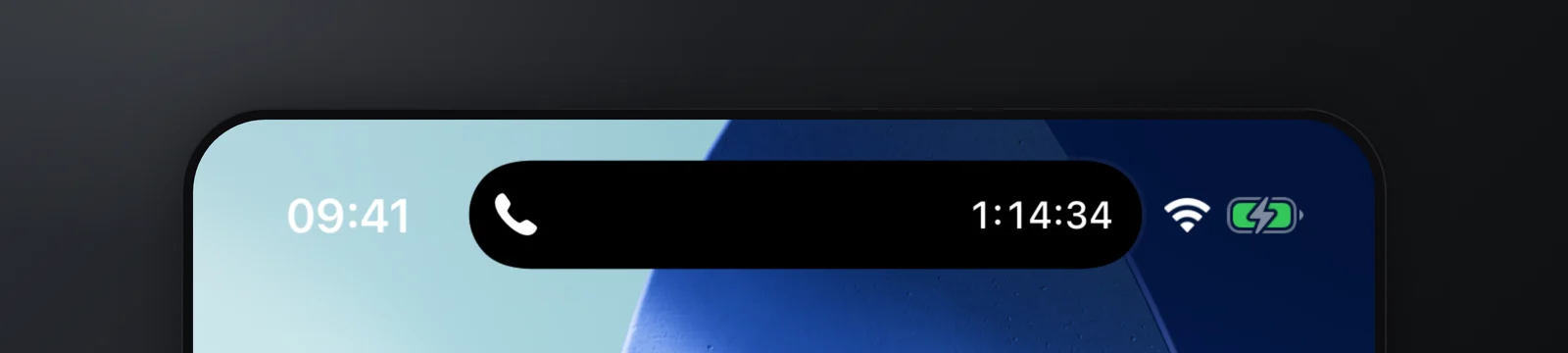
On iPhones with a Dynamic Island, the countdown sits there next to the Superscribe logo while you use the phone. Before, it only showed how many suggestions were waiting.
Reminders show their day
A reminder does not get a ticking clock. Its card says Due today, Due tomorrow, or the day or date it is due. After that day it says Was due yesterday, then Overdue. Tap Create reminder and it goes straight into the Reminders app, once you have given Superscribe access to Reminders.
In the car
In CarPlay the card is now two short lines: what was agreed, and under it “Meeting · starts in 1:12:30”, “Reminder · due tomorrow” or “Call back”. The old card was too tall for the CarPlay screen, so the line with the time was cut off.
When the card shows up
The card appears after calls where something is due soon, like a meeting today or tomorrow. In the app’s Settings, under Notify me, choose All suggestions to get it after every call with a suggestion, or Off to turn it off.
One more fix
If you answer a call on your Mac or PC, your iPhone no longer shows it as a missed call.
Get it
Superscribe Phone 1.2.4 is on the App Store now. The 1.2.2 post covers saving these suggestions from the car, and today’s Mac post shows dictation into a remote desktop.