Dictate Into Any App on iPhone With the Superscribe Keyboard
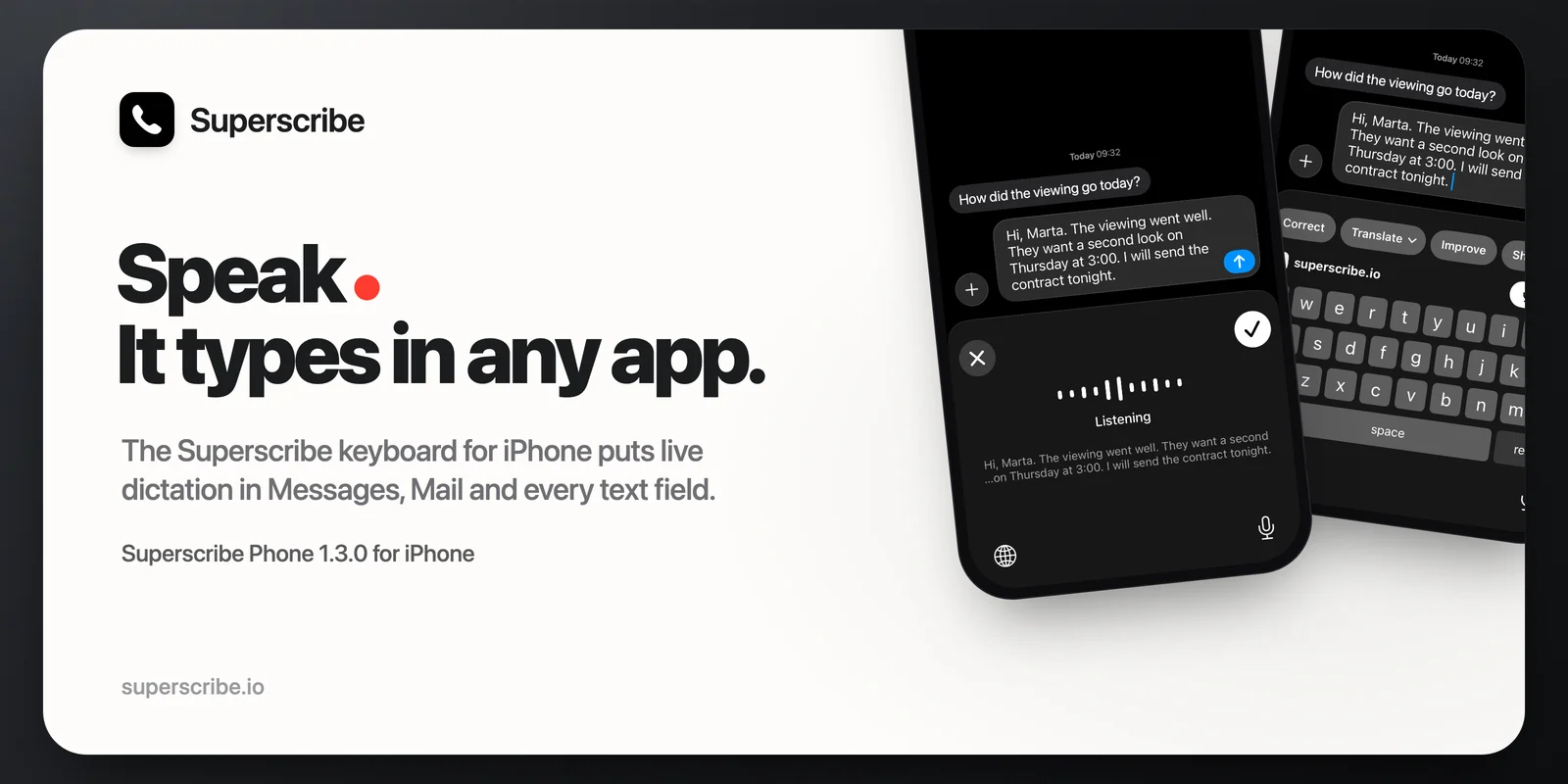
On my Mac, I stopped typing a long time ago. I press a shortcut, talk, and the words appear wherever the cursor is. Then I pick up the phone to answer a client, and I am back to typing with two thumbs.
Not any more. Superscribe Phone 1.3.0 adds the Superscribe keyboard. It works in almost every app on your iPhone, the same way the desktop app works on your computer.
What it does
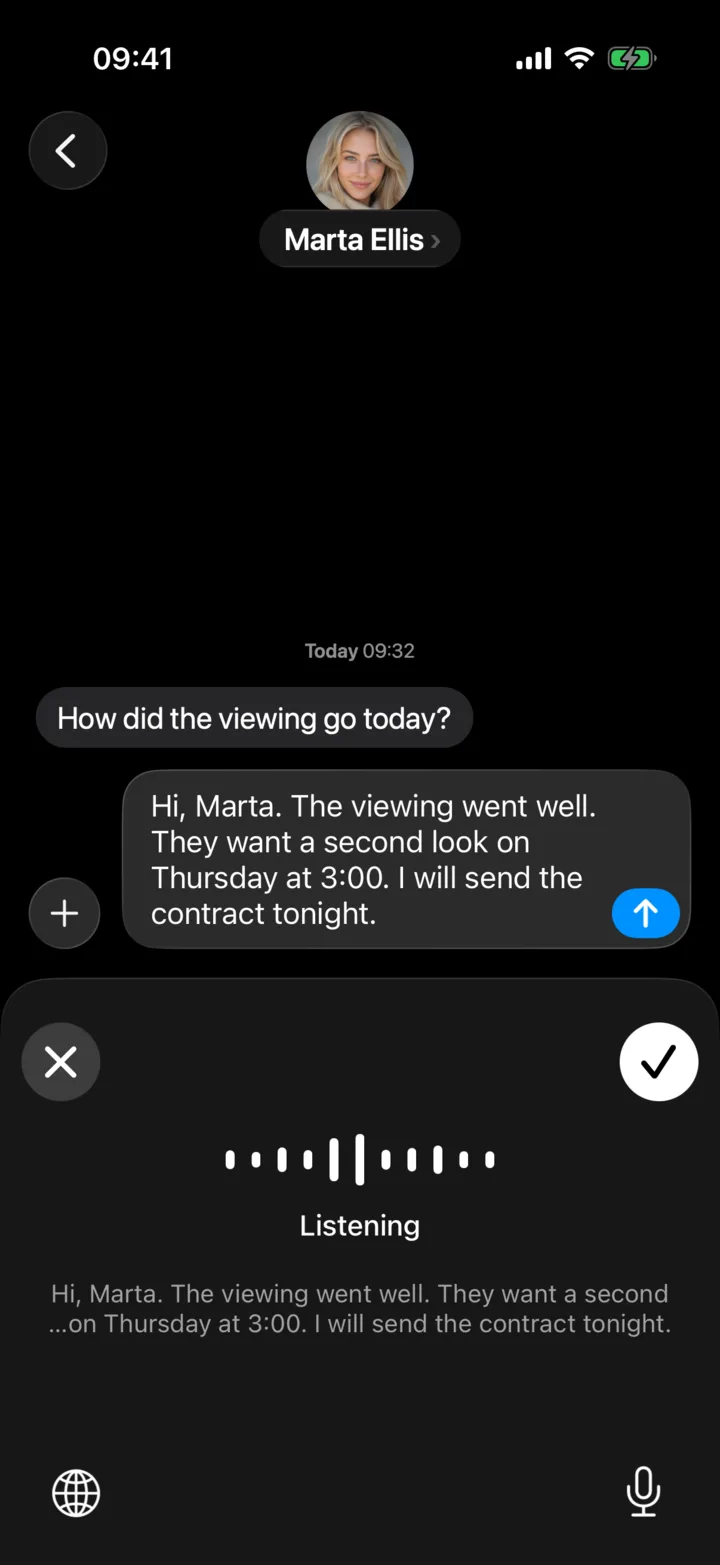
Open any app where you type: Messages, Mail, Notes, a CRM, a chat app. Switch to the Superscribe keyboard, tap Speak and talk. The words appear in the text field while you are still speaking. Tap the check mark when you are done, or the cross to cancel.
Fix the text with one tap
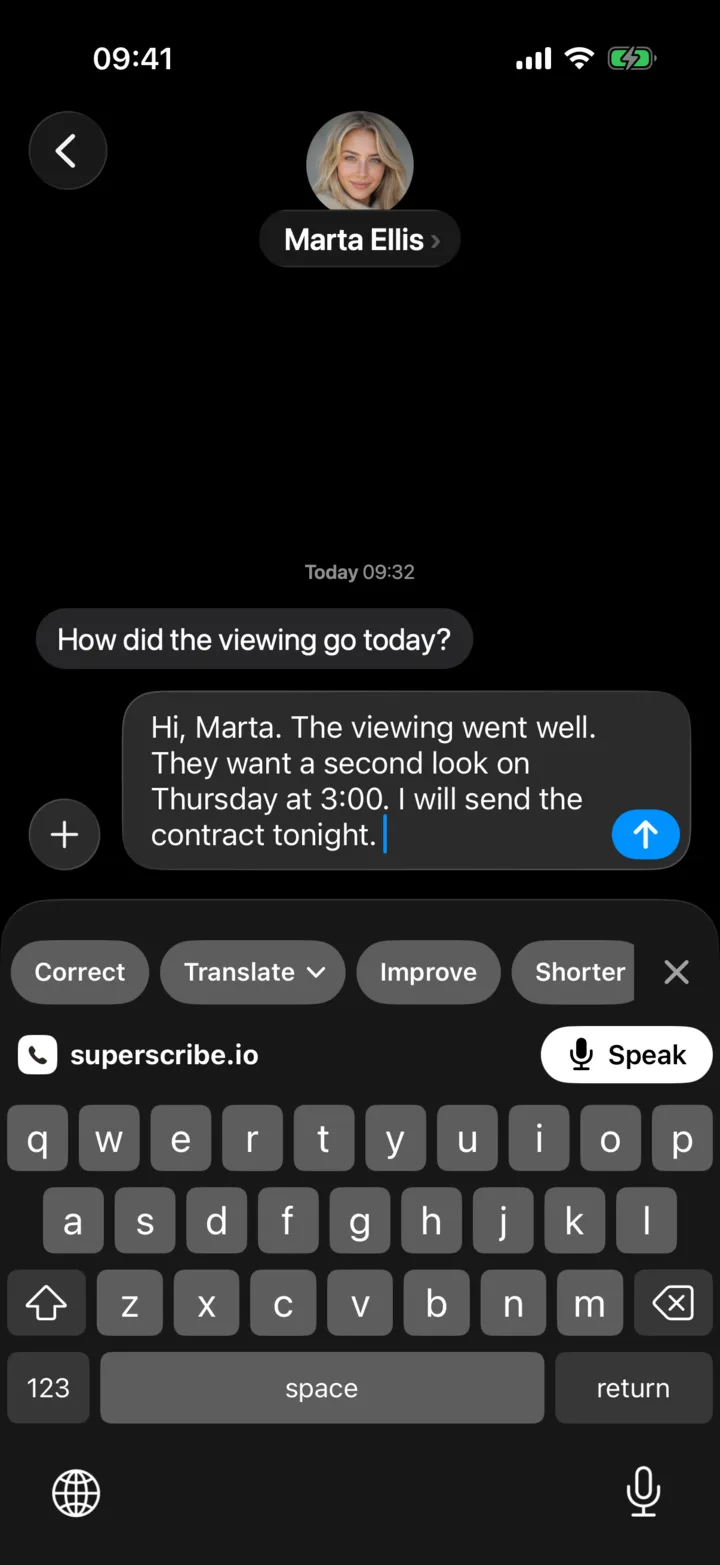
When a dictation is finished, a row of buttons appears above the keys: Correct, Translate, Improve, Shorter, Formal and Friendly. Tap one and the text is rewritten in place. If you do not like the result, Undo brings your original words back.
This is the same rewrite the Mac app offers. It is useful when you dictate in one language and need to send the message in another, or when a quick spoken reply should sound a bit more formal.
How to turn it on
- Update Superscribe Phone to the latest version and sign in.
- Open the iPhone Settings, then General, Keyboard, Keyboards, Add New Keyboard, and choose Superscribe.
- Tap Superscribe in that list and allow Full Access.
- In any app, hold the globe key and pick Superscribe. Tap Speak.
The first time, the keyboard may show Open Superscribe. Tap it, the app opens, and you swipe back to where you were typing. From then on the app listens for the keyboard in the background until you stop it, or for the time you choose in the app’s Settings. Music or other audio on your phone keeps playing.
Why it asks for Full Access
On iPhone, a keyboard is not allowed to use the microphone. So the Superscribe app does the listening: when you tap Speak, the app records, turns your speech into text and hands the text back to the keyboard.
Full Access is what lets the keyboard and the app talk to each other. The keyboard does not keep a record of what you type. What leaves your phone is your voice while Speak is on, and the text when you tap one of the buttons that fix it. Each dictation is saved in your Superscribe account, with its audio, like a dictation from the desktop app. You can still type on the Superscribe keyboard without Full Access; only dictation needs it.
Languages
The keyboard understands the same languages as the rest of the app, and by default it detects the language as you speak. If you always dictate in one language, pick it on the keyboard itself: the button next to Speak says Auto, or the two letters of the language you chose. You can also set it in the app under Settings, Keyboard.
Estonian works too, which the iPhone’s own dictation does not offer.
Small things that matter when you type a lot
- Number fields open straight on the digits layer.
- Holding delete removes characters, then whole words, like the normal iPhone keyboard.
- Siri or an alarm only pauses listening, and it carries on afterwards. After a phone call, opening the app is enough to bring it back.
What it does not do
- It needs an internet connection. Dictation on the phone is not processed on the device.
- It is iPhone only, like the rest of Superscribe Phone.
- iPhone does not allow other keyboards in password fields, and some apps, such as banking apps, do not allow them at all. There the normal keyboard appears.
- Dictation uses your Superscribe account. Paid plans have no limit on dictation minutes. Without a plan, you get 30 minutes of dictation a month for free, shared with the desktop apps.
Get it
The keyboard came in Superscribe Phone 1.3.0. The current version, 1.3.4, is on the App Store, and it has a short guide in the app that shows how to turn the keyboard on. If you already dictate on your computer, this closes the gap: the same voice typing, now in your pocket. For the computer side, see how dictation now works in a remote desktop or try Superscribe Lite for free on-device dictation on Mac and Windows.